Overview
Kazang Pay is one of our top performing service that is offered to all our existing and newly onboarded vendors. Kazang Pay allows all our registered vendors to actively complete card transactions for customers at point of sale.
Cash may always be king, but it is important to note that customer security is top of Kazang Pay priorities with the services on offer. This is complete comprehensive Troubleshooting guide has been compiled to assist you when dealing with any vendor queries regarding Kazang Pay and its features.
Various Bank Response Codes
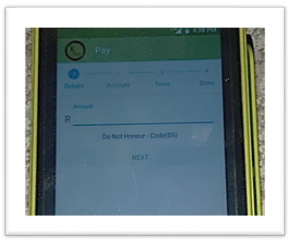
The vendor will receive various error messages that will display a Banking Code Message, these error messages let us here at Kazang know not to honour the payment.
Resolution Steps:
To resolve and these Bank Response error code messages and clear from the vendor's device to allow them to continue trading, the following steps MUST BE completed:
- Send the Field Agent/Rep a copy of the list of error codes
- Advise the Field Agent/Rep that as this is a banking error, we are unable to resolve the error on our and the customer/vendor MUST content their issuing bank for further assistance and resolution of the query
Response Codes:
You can view the list of the Bank Response codes by click and downloading the attached file at the bottom of this article.
Use "CTRL+F" to search and locate the relevant code detail easily.
Error Processing Transaction
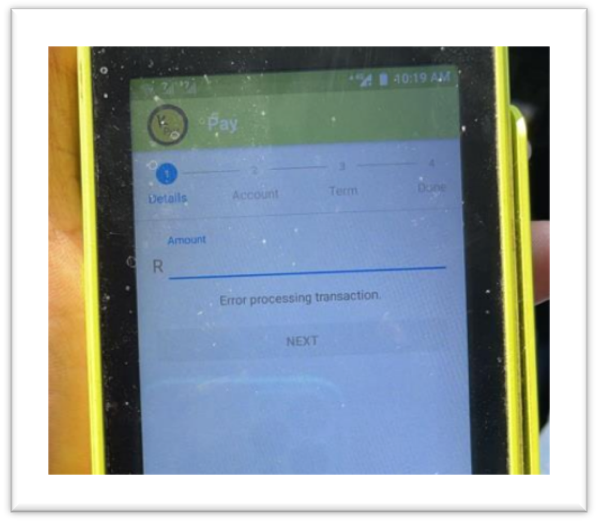
The vendor will receive this error on their Kazang Pay screen when the device has lost its keys. The keys referred to is a certain code that enables the device to process card transactions. Without these keys, the device would not be able to process card transactions and will continue to return the error seen below.
When would a device lose keys:
- When the device has been tampered with
- When the device has received physical damage, and the impact of the damage has caused the device to compute that it has been tampered with.
Key download errors:
Should any one of the following errors occur, it means that the network is weak and not strong enough to download the keys.
- TimeOut
- Could not connect to KMS
Should the below errors appear, the vendor's query needs to be escalated into the Kazang Pay Support team for further handling:
- Persistent connection errors even after troubleshooting
- The device is not on the whitelist
Action Step | Action Detail | Device Journey |
| Step 1 | Click on the Home Button of the Kazang device | 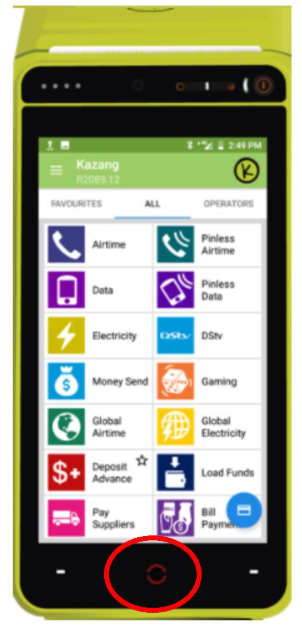 |
| Step 2 | Select App Market | 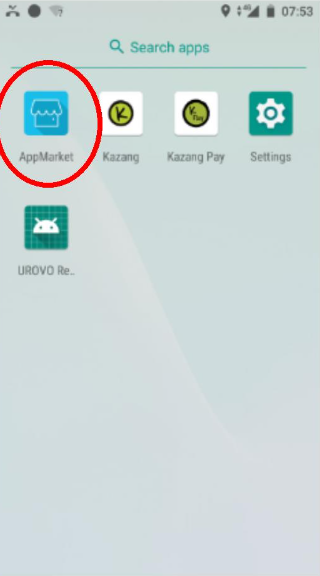 |
| Step 3 | Select either Open or Download next to the KMS app being displayed on the App Market | 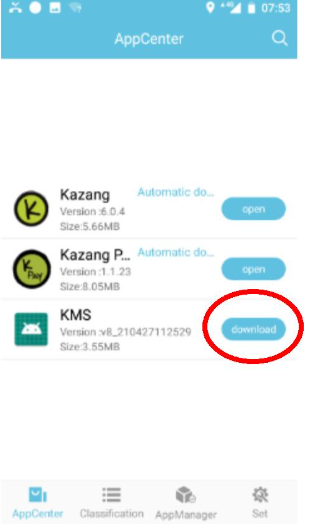 |
| Step 4 | Once successfully downloaded, open the KMS app | 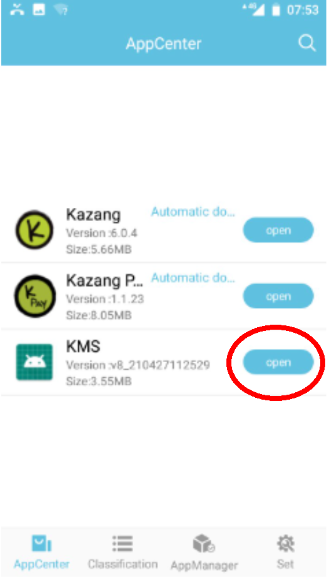 |
| Step 5 | Click on the "Get key" icon | 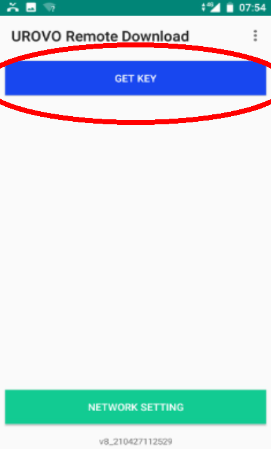 |
| Step 6 | The keys will now start downloading on the vendor's device (Please make sure that there is a strong internet connection. This is a requirement for keys to download) | 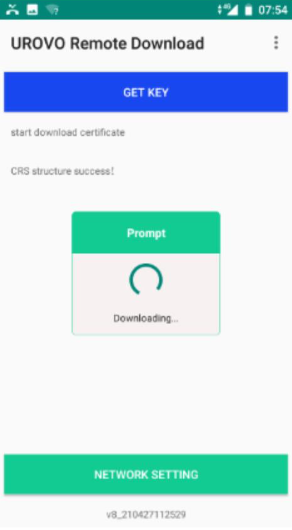 |
| Step 7 | A successful download will populate the following screen | 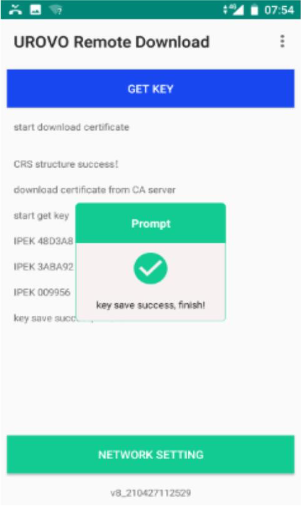 |
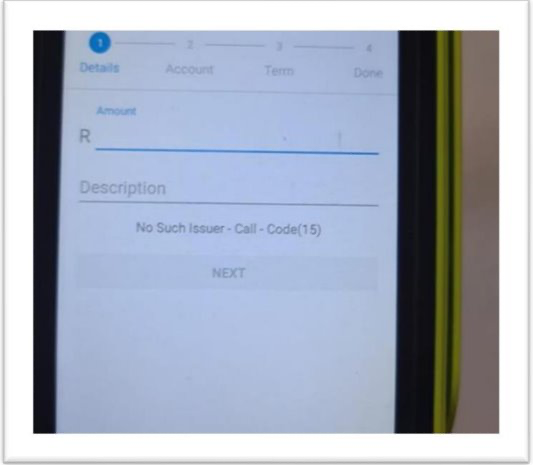
No Such Issuer
The vendor will receive this error on their Kazang Pay screen when there is no Merchant ID (MID) allocated to the vendor’s profile. Merchant ID's (MID) are issued daily and are then allocated and activated on a vendor's profile.
Alternatively when Kazang has run out of Merchant ID's (MID), the vendor would need to wait until after midnight to confirm if their MID has been activated
Resolution Steps Required:
To resolve and clear this error message, the agent should inform that a MID for their vendor will be allocated the following day or after midnight They would only be able to transact if they have an active Merchant ID associated with their profile.
Should the below errors appear, the vendor's query needs to be escalated into the Kazang Pay Support team for further handling:
- The error persists or remains for more than a day.
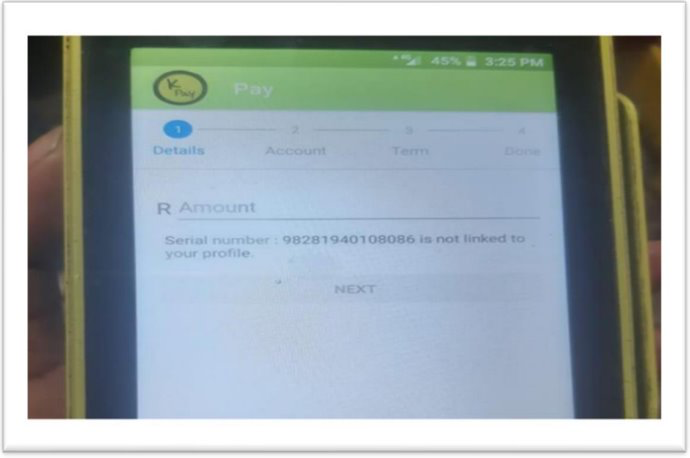
Serial Number is not linked to your profile
The vendor will receive this error message on the Kazang Pay screen to indicate that the current device in use is not linked to the vendor's account.
This error occurs if the app data was not cleared on a refurbished or a device that was used by another vendor. Alternatively, another instance is that the serial number on the current device does not match to the vendor's information on any of systems or sub-systems respectively.
Resolution steps required:
There is two possible solutions that can be followed to resolve and clear the error message on the device:
- First Line Device Troubleshooting by guiding the vendor through the required actions to be completed on the device to clear the error message and allow the vendor to continue trading.
- If the error message still persists, then the query will need to be escalated to our Kazang Support Team for resolution to be achieved.
It is important to understand that before any query is escalated into the Kazang Support Team, all first point of contact troubleshooting MUST be completed and all actions detailed within the ticket raised in the Kazang Support Team.
First Line Troubleshooting Steps:
The below guidance steps will allow you to clear the app data on the device of the vendor:
Action Step | Action Detail | Device Journey |
| Step 1 | Select Settings from the main menu home screen | 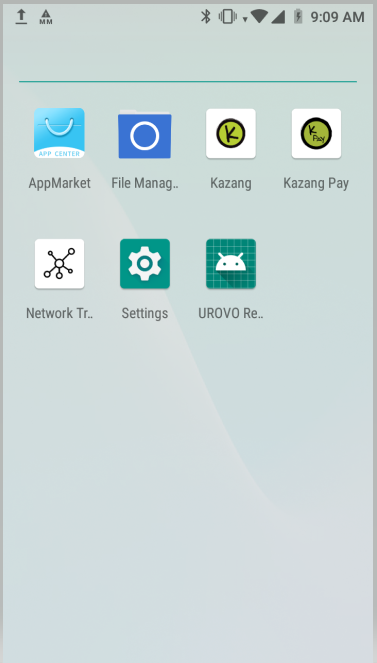 |
| Step 2 | Select the Apps & Notifications option | 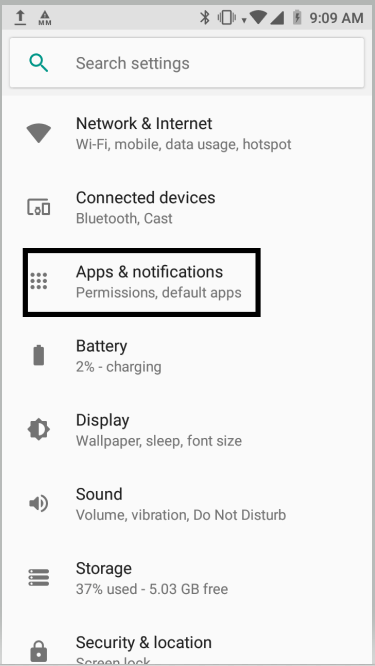 |
| Step 3 | All apps currently installed on the device will now be displayed. Select the Kazang Pay App | 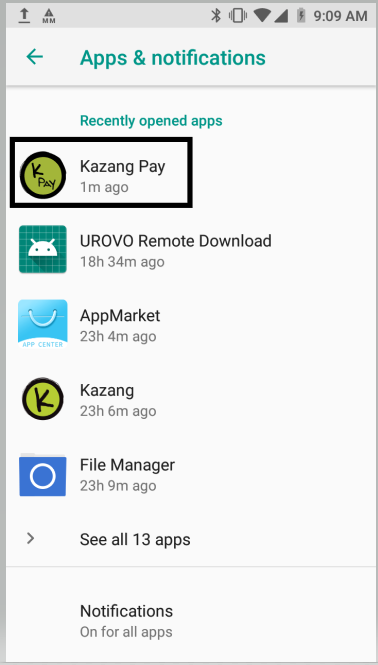 |
| Step 4 | Select the Storage option on the app details screen | 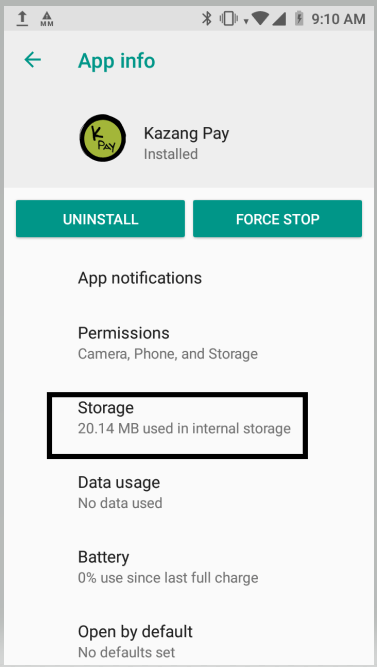 |
| Step 5 | After selecting “Storage”, Click on “Clear data” | 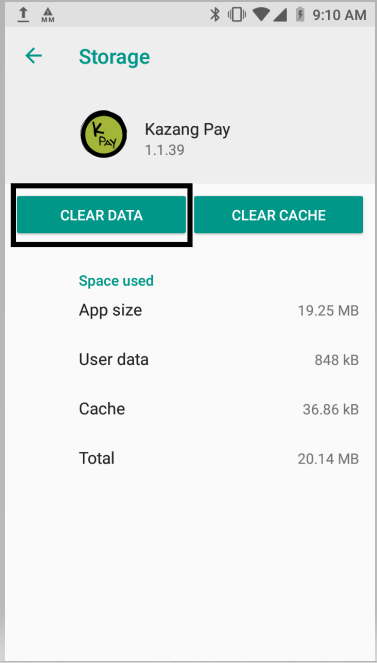 |
Transaction Did Not Settle
There are numerous and too various reasons the vendor will receive this error on their Kazang Pay screen for a transaction not settling at all, or not settling immediately. While the reasons may differ, the way in which we will look for a transaction and the checks we will do, remains the same.
To confirm if the settlement has been successful on Content Ready, below is a summary of the status you will see in that regards:
Content Ready Status | Status Summary |
| Successful | Means that the transaction has bene captured on our system and will be settled (there may be possible delays as explained below) |
| Settled | Means that the funds have settled to the Kazang account and this can be confirmed on Content Ready. |
When would transactions not settle:
Failure Reason | Summary |
| Delay caused by busy periods | Our Kazang Pay Instant Settlement (KPIS) processes around 40 000 instant settlements per hour. The problem would arise when their is a sharp increase in card payment being processed through our devices. It sometimes happen that we receive more than 40 000 instant settlement requests per hour therefore leading to the KPIS system not being able to process all payments within that hour, hence causing a delay. |
| Delay caused by bad network | This is not limited to the vendor's location alone. Keep in mind, that bad network could mean that the network at either the vendor, the bank or Kazang can be delaying the settlement process. |
| Delay caused by bank/internal servers experiencing downtime | When our vendors make deposits and we are not receiving those deposits, then we check on Content Ready to see if a bank is possibly offline. In this same way, Kazang Pay settlements would be delayed when a banks servers are down. |
| Transaction was not successful | There are a few entities (along with their systems) that make a transaction successful. The Kazang Pay app has been built in such a way that a slip will only print after the transaction is successfully processed. This means that if you have not received a slip, chances are that the transaction cycle did not complete and that your transaction was auto refunded. These refunds can take anything between 24-48 hours to be back in the card holders account. |
First line troubleshooting steps:
Before investigating the reason for the transaction not settling, you will first need to locate the vendor's profile on Content Ready. This can be done by following the below guidance steps:
Action Step | Action Detail |
| Step 1 | Select the Settings on the bottom right-hand corner of the Kazang Pay home screen |
| Step 2 | Click on Profile on the following screen |
| Step 3 | Request that the agent to take a picture of the vendor's profile to confirm whether the account number and serial number of the vendor match. |
Troubleshooting Scenarios | Resolution Action Detail |
| Delay caused by busy periods | Navigate to the Accounting Tab on Content Ready and select "Account Settlement History". Should the transaction appear on this page and contain the status "successful" then it means that we have captured the payment on our system and it will settle within the next few hours (Could take up to 24 hours). Should the vendor follow up after 24 hours and the status is still "successful" then please escalate to the Kazang Pay support department for further investigation. |
| Delay caused by bad network | Navigate to the Accounting Tab on Content Ready and select "Account Settlement History". Should the transaction appear on this page and contain the status "successful" then it means that we have captured the payment on our system and it will settle within the next few hours (Could take up to 24 hours). Should the vendor follow up after 24 hours and the status is still "successful" then please escalate to the Kazang Pay support department for further investigation. |
| Delay caused by bank/internal servers experiencing downtime | Navigate to the Accounting Tab on Content Ready and select "Account Settlement History". Should the transaction appear on this page and contain the status "successful" then it means that we have captured the payment on our system and it will settle within the next few hours (Could take up to 24 hours). Should the vendor follow up after 24 hours and the status is still "successful" then please escalate to the Kazang Pay support department for further investigation. |
| The Kazang Pay profile on the device does not match the vendors details | Navigate to the Accounting Tab on Content Ready and select "Account Settlement History". Should the transaction appear on this page and contain the status "successful" then it means that we have captured the payment on our system and it will settle within the next few hours (Could take up to 24 hours). Should the vendor follow up after 24 hours and the status is still "successful" then please escalate to the Kazang Pay support department for further investigation. |
| Transaction was not successful | Navigate to the Accounting Tab on Content Ready and select "Account Settlement History". Should the transaction appear on this page and contain the status "successful" then it means that we have captured the payment on our system and it will settle within the next few hours (Could take up to 24 hours). Should the vendor follow up after 24 hours and the status is still "successful" then please escalate to the Kazang Pay support department for further investigation. |
Kazang Pay Errors and Escalations
Below is a detailed guide of the most received and queried error message vendors can receive on their devices followed by the appropriate escalation route highlighting the SLA turnaround time for resolution:
Error | CC Action | Escalate to: | Service level |
No Issuer | Will auto fix after midnight | None | None |
| This app Could not be Found | Download App again | None | None |
| User or Serial Number Cannot be Blank | Refresh the page and continue | KP Support | None |
| Response Codes e.g. (Error Code 05) | Customer to contact their bank to find out why their bank declined the transaction. If persistent error for ALL CARDS then escalate | KP Support | None |
| Device Not Registered for Auto Activation | Check if Kazang Pay was approved. If not approved then advise accordingly. If approved then escalate. | KP Support Only action if application has been approved | 12-24 hours |
| Error Processing Transaction | Perform key Injection – escalate for whitelist error and include serial number and picture of the error on the ticket. | KP Support | 24 hours |
| Unable to decrypt sensitive information | Key Injection – escalate for whitelist error and include serial number and picture of the error on the ticket. | KP Support | 24 hours |
Registration Service Error Occurred | Check if Kazang Pay was approved. If not approved then advise accordingly. If approved then escalate. | KP Support | 24-48 hours |
Could Not Retrieve User Profile | Check if Kazang Pay was approved. If not approved then advise accordingly. If approved then escalate. | KP Support | 24-48 hours |
Account Login Attempt Failed | Clear KP app data and then register KP again. Troubleshoot the network by connecting to WIFI or a different mobile network. If error persists then escalate. | KP Support | 24-48 hours |
Serial Not Linked to Your Profile | Start by clearing app data and registering again. If persistent error, then escalate. | KP Support | 24-48 hours |
Could not replace terminal | None | KP Support | 24-48 hours |
| Your profile cannot perform transactions of type purchase | None | KP Support | 24-28 hours |
| Not getting settlements | Add screenshot or details of the Kazang Pay profile, with relevant slips and snippets of investigation done on Content Ready | KP Support | 24-72 hours |
Transaction Cancelled | Check for Kazang Pay system updates. If there are any updates available then install them. Will need a good network connection. Escalate persistent errors. | KP Support | 48-72 hours |
Device Error Messages and Resolution Requirements
Additionally there other error messages that vendors may receive on their registered Kazang devices, some of these error message can be resolved simply by educating the vendor on the required steps.
*Have we missed anything in this article?
Email operationssupport@kazang.com should you need any more information to be added onto this article.
Was this article helpful?
That’s Great!
Thank you for your feedback
Sorry! We couldn't be helpful
Thank you for your feedback
Feedback sent
We appreciate your effort and will try to fix the article