Overview
The funds transfers process allows us to transfer funds from one account to another at the request of the vendor.
Vendors can set up a rule, that automatically transfers funds from their root account, to the other sub accounts.
This would be helpful in a situation where the vendor has a few shops, and needs to ensure each of them gets money transferred to them when they reach a certain minimum balance, that will be predetermined during setup.
Key Points to check before setting up the Auto Transfer:
- Determine the group of the primary account of the vendor
- Ensure that all sub-accounts linked to the primary vendor are captured under the same group
* Important to note that the Auto Transfer process will not be possible if both the primary and sub-accounts are not in the same group.
How to setup an Auto Transfer on Content Ready?
Action Step | Action Details | Additional Information | Content Ready Journey |
| Step 1 | Select the Accounting Tab and click on Auto Transfer | 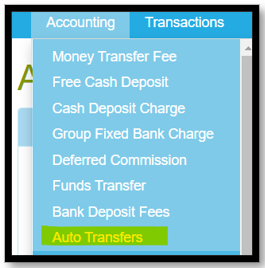 | |
| Step 2 | Select "Add New Auto Transfer" | 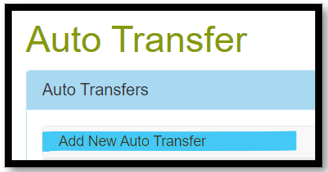 | |
| Step 3 | Select the group | 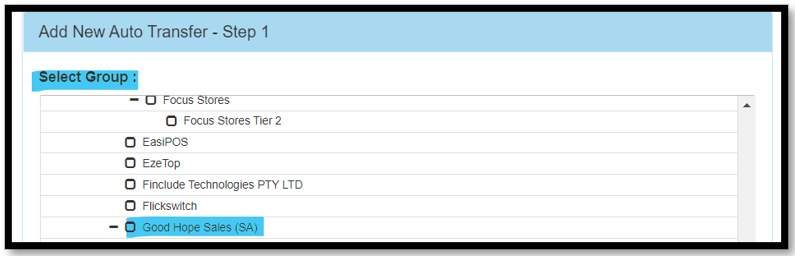 | |
| Step 4 | Insert both the "minimum balance" and the "transfer amount" | Minimum balance will determine which balance on the receiving account will trigger the main account to transfer funds to the receiving account. Transfer Amount will decide how much the main account will transfer each time this rule is triggered. | 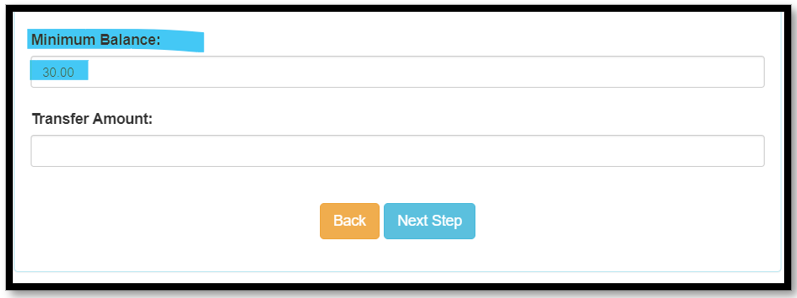 |
| Step 5 | Select the root account (Filter with the account number) and then click on next | 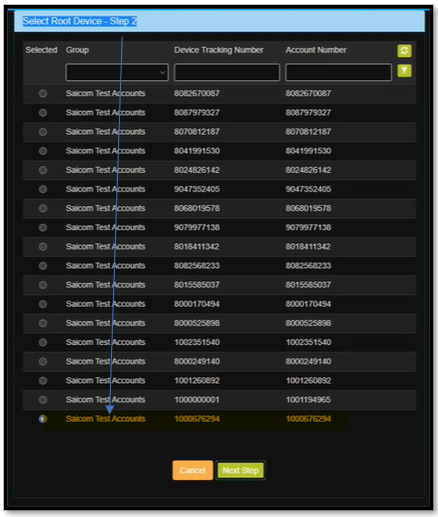 | |
| Step 6 | Select all sub accounts (Destination accounts) and then click on next | 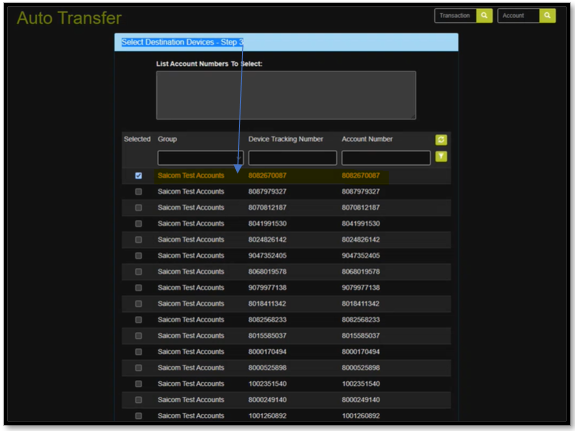 | |
| Step 7 | Select Finish Auto Transfer | 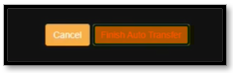 |
How to check if an account is set up for auto transfer?
Checking on Content Ready if an Auto Transfer has not previously been set up for the vendor will ensure that the vendor will not misplace funds.
Action Step | Action Details | Additional Information | Content Ready Journey |
| Step 1 | Insert the root account number and click on the filter icon | On the result page you are also able to see the root account, how many destination devices are linked, the minimum balance that triggers auto transfer and the transfer amount. | 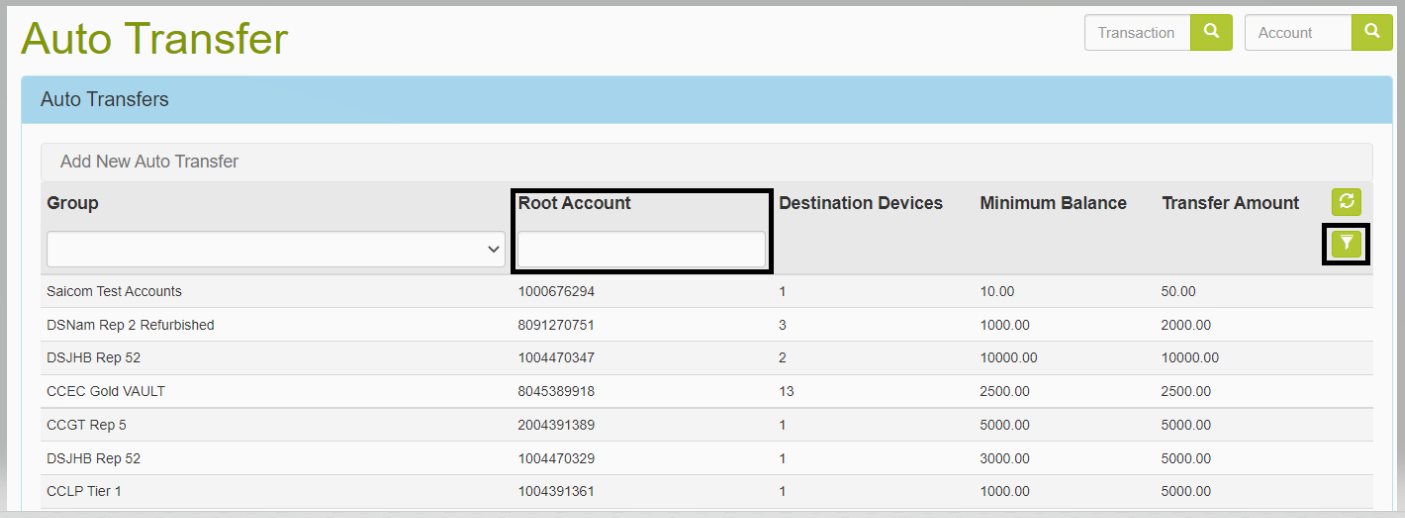 |
| Step 2 | Once clicking on the search result, the page will open where you are able to change the root and sub accounts and edit transfer amounts. | If changes are made, remember to click on the "SAVE" button before leaving the page | 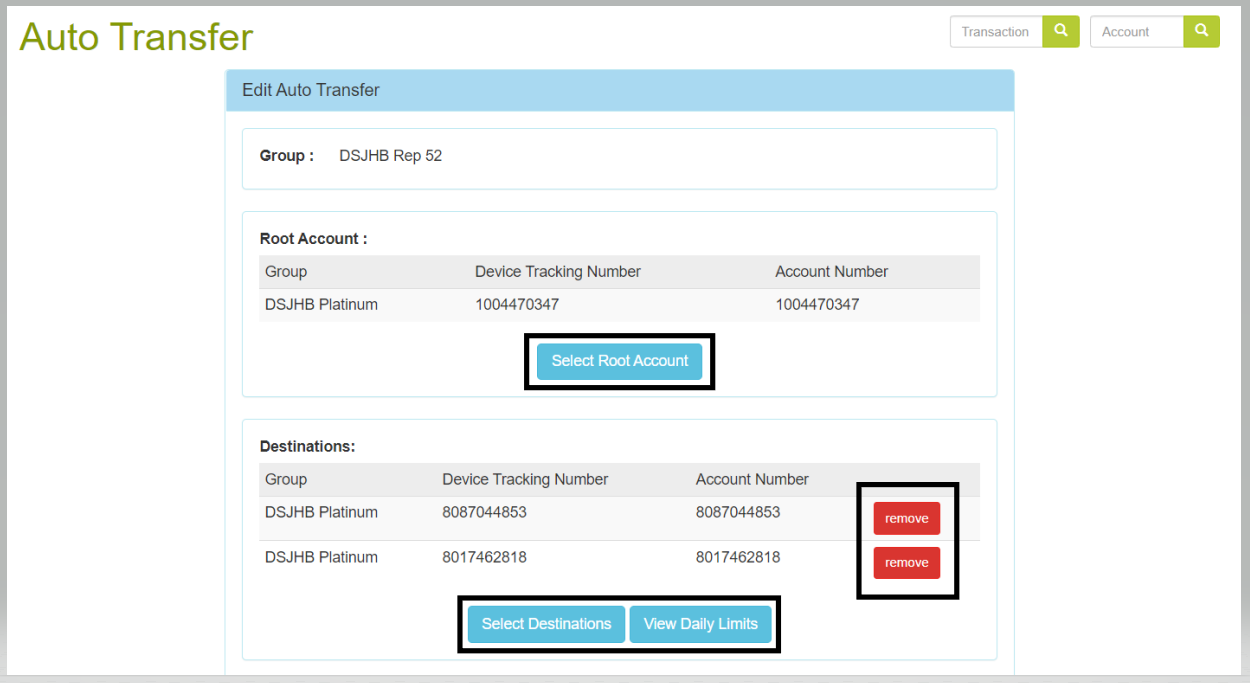 |
How to Link an Account for Auto Transfer?
You will need to link the main Kazang account of the vendor to the devices under their shopping network. By setting the primary account up will ensure that there is no anomaliest through the process when adding one or more devices to the vendors device network.
Action Step | Action Details | Additional Information | Content Ready Journey |
| Step 1 | Ensure the Parent Account has been added to the Kazang Corporate (SA) | Parent Account must always be: Kazang Corporate (SA) for setting up an Auto Transfer | 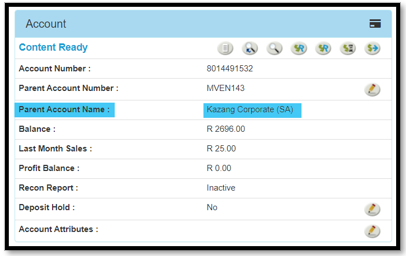 |
| Step 2 | Change the group to the Choice Group | The "Choice" group being selected must be relevant to the region of the vendor | 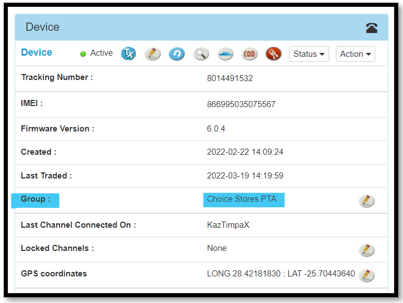 |
| Step 3 | Select the Accounting Tab followed by Auto Transfers | 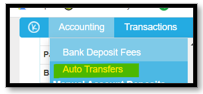 | |
| Step 4 | Enter the account number in the Root Account search box | 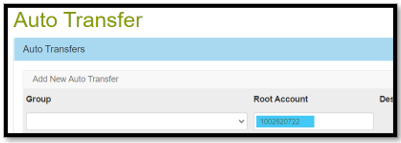 | |
| Step 5 | Click on the result that has populated |  | |
| Step 6 | Click on Select Destinations | 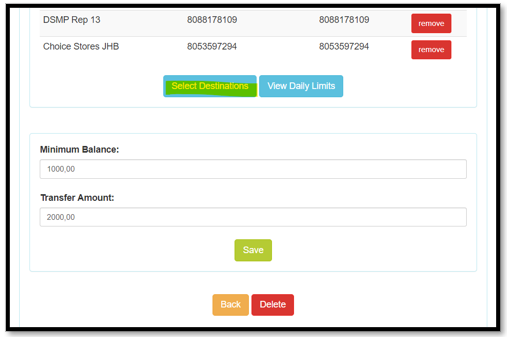 | |
| Step 7 | Filter the search with the new sub account reference |  | |
| Step 8 | Select the device requested by the vendor | The selected account will now be linked and ready to receive auto transfers from the root account. |  |
How to Remove an Account/Device?
Removing an account will always ensure that the correct devices within the vendors network are up to date. This will ensure that the funds of the vendor that is being transferred are being directed to active devices.
Action Step | Action Details | Content Ready Journey |
| Step 1 | Select the Accounting Tab followed by Auto Transfers | 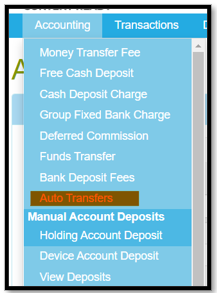 |
| Step 2 | Enter the account number in the Root Account search box | 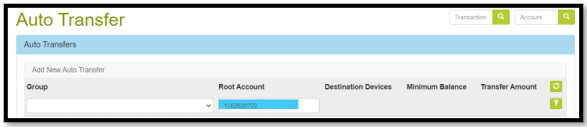 |
| Step 3 | Locate the account that is required to be removed or deleted | 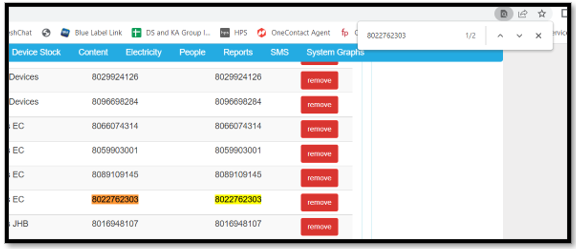 |
| Step 4 | Click on Okay to confirm the removal of the selected device | 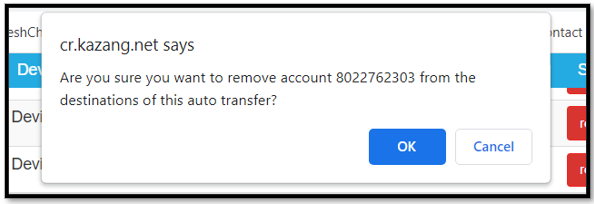 |
| Step 5 | A confirmation pop message will be appear to confirm the removal of the account | 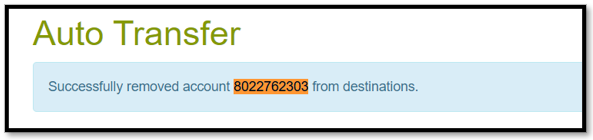 |

*Have we missed anything in this article?
Email jason.ariefdien@kazang.com should you need any more information to be added onto this article.
Was this article helpful?
That’s Great!
Thank you for your feedback
Sorry! We couldn't be helpful
Thank you for your feedback
Feedback sent
We appreciate your effort and will try to fix the article