Overview
From time to time vendors will contact us with queries when vending electricity. As electricity is one of our top sellers in our vast VAS eco system, we are continuously looking at ways to ensure that we have the correct troubleshooting processes in place to help our vendors resolve any queries.
This solutions article will provide an overview of basic steps for common troubleshooting scenarios that vendors may experience when vending electricity to our customers across Southern Africa.
Electricity Vending Reversal
We cannot reverse any Electricity transactions that have been vended. This information is displayed at the bottom of the slip that is printed out at the point of sale.
It is the vendor's responsibility to always ensure that they are vending the correct product at the right time based on the customer's request. Should any vendor contact us requesting a reversal, please inform them that we are unable to do so.
Electricity Vend Does Not Show The Token
This scenario arises when the vendor has successfully vended electricity for the customer, but the token number is not accepted when the customer has entered the token into their meter box.
In this instance, you will need to confirm if there are any issues that are impacting the customer which is not allowing them to enter the token number.
This can be done by following the below guidance steps:
Action Step | Action Detail |
| Step 1 | Take the Transaction ID |
| Step 2 | Enter the Transaction ID on Content Ready |
| Step 3 | Check the electricity slip if there is any outstanding debt by the owner/customer |
| Step 4 | Advise the customer to reach out to their respective municipality to confirm their debt and setup any payment arrangements if required. |
Electricity Meter Number Linking
From time to time, vendors will request that we linked the electricity meter number to our systems. This can be completed on Content Ready for the vendor.
Action Step | Action Detail | Additional Information | Content Ready Journey |
| Step 1 | Access Content Ready followed by selecting Electricity then Test Meter | 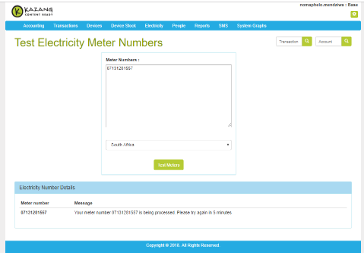 | |
| Step 2a | If meter still shows does not vend go to electricity & select meter number info. Enter the meter number of the vendor follow by selecting Find Details | 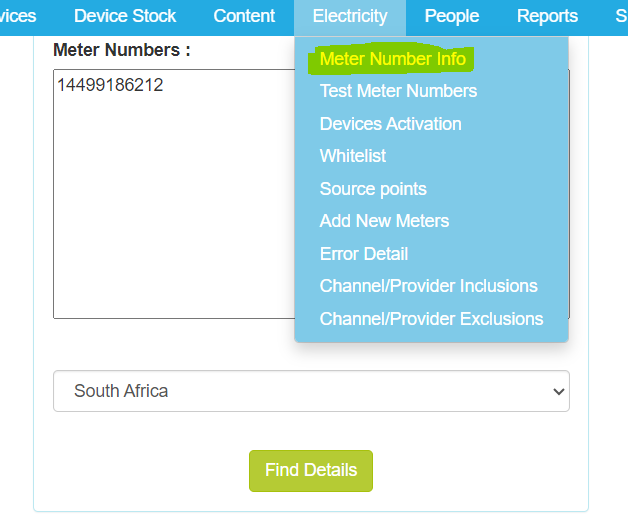 | |
| Step 2b | Once you have done so, select Reset Meter Number | 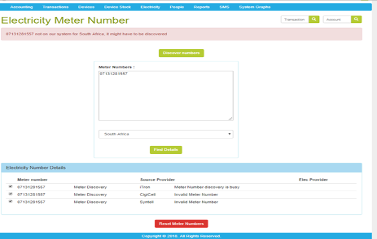 | |
| Step 3 | Once the meter has been reset, you will need to test the meter by selecting the Test Meter icon. | 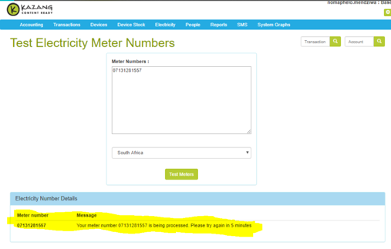 | |
| Step 4 | Repeat the meter test process until you receive the below status messages:
| Should you receive the status message We Can Vend For Meter, head back to the Meter Number Info screen and it now reflect which meters are Active and Inactive. Repeat the process until all the required meters reflect as Active | We Can Vend For Meter: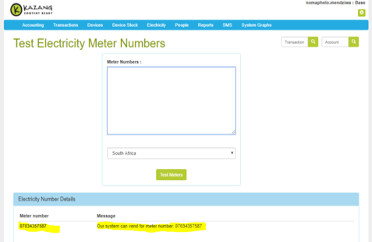 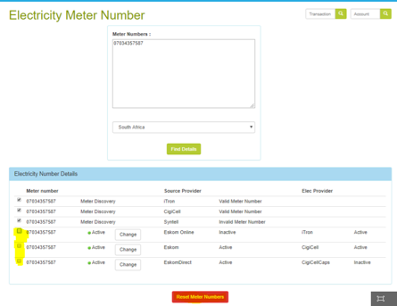 |
| Step 5 | If the the error persists after reset 'System cannot vend for meter' go to electricity and select Add New Meters. Select Add Upload and select Providers. | Request for the municipality they want to vend for and add on CR | 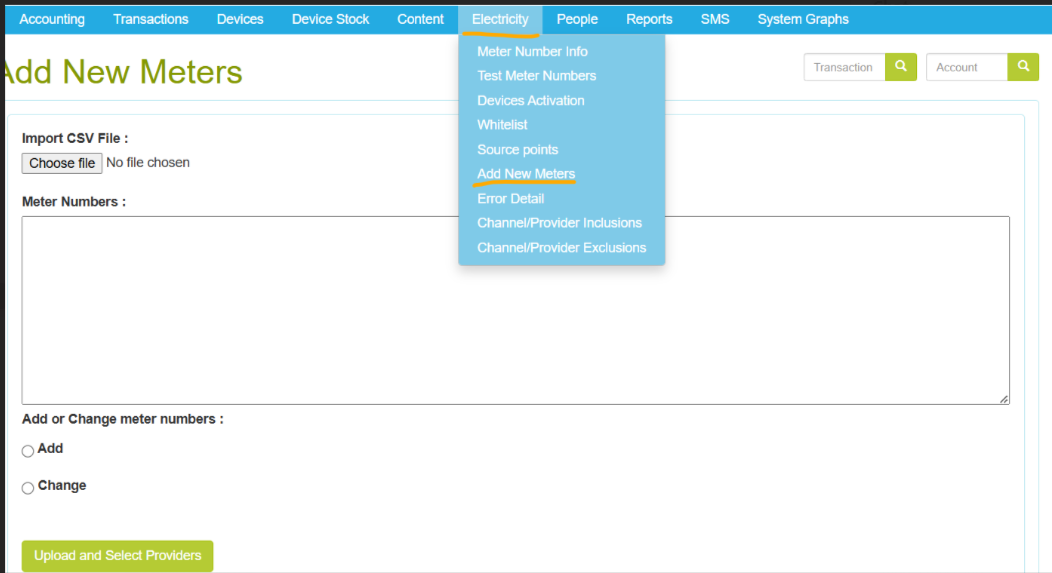 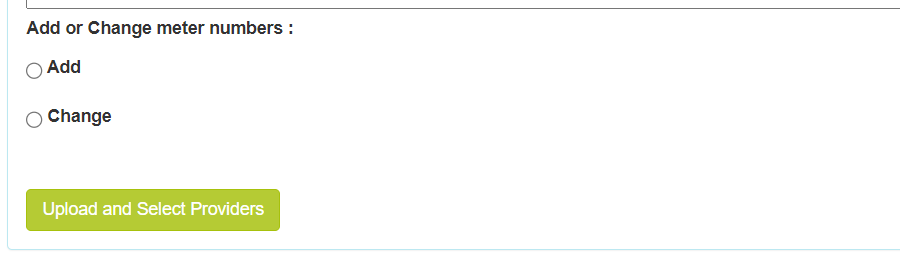 |
| Step 6 | After adding the service provider refer back to Step 1 ( Test meter) | If the test was unsuccesfull, and the issue still persists the request for the meter number and muncipality needs to be escalated for resolution. To escalate the query, you must add the "Meter Issue" classification on the ticket. | 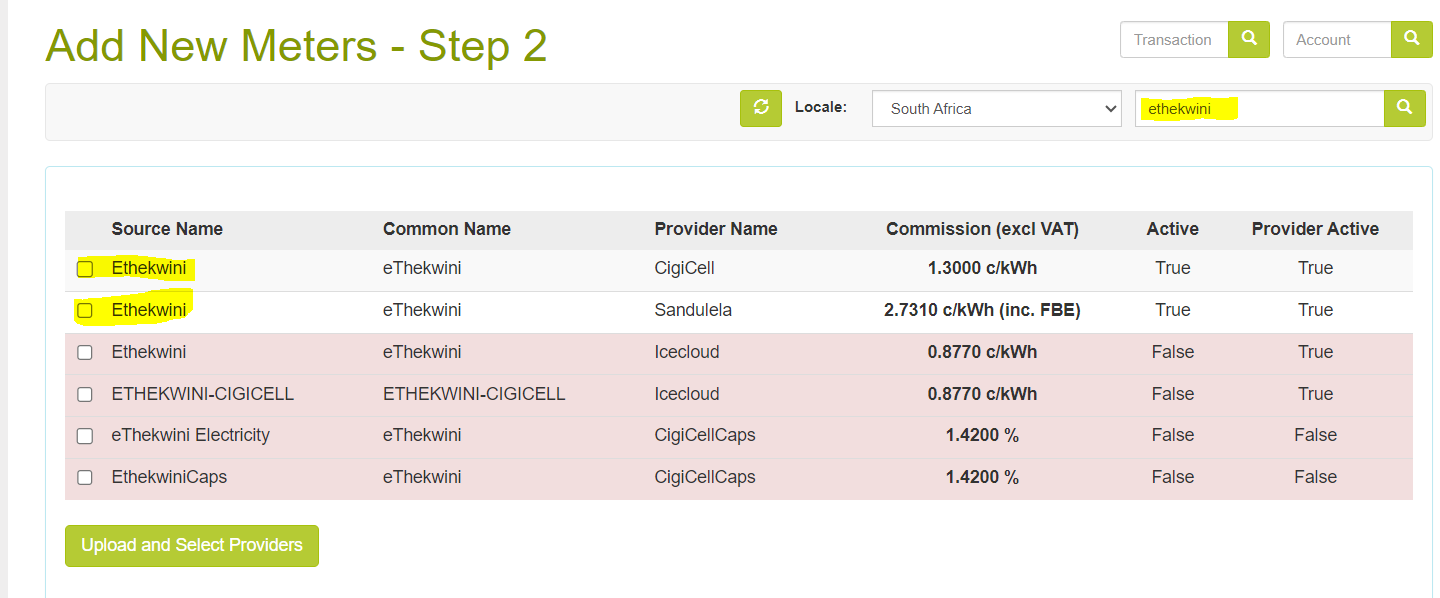 |
Determining Electricity Supplier
Because we work with different electricity suppliers in each municipality, it is important for us to know which supplier to escalate to when running into an error. The below guidance steps will assist you to determine who the supplier is for electricity purchases made on a Kazang vending machine.
Action Step | Action Detail | Additional Information |
| Step 1 | Obtain the TXN ID (Transaction Identity) which will be listed on the slip | 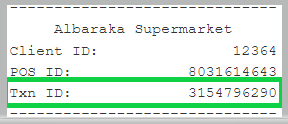 |
| Step 2 | Insert the TXN ID in the transaction search bar in the top right corner of Content Ready followed by the magnifying glass to action your search |  |
| Step 3 | Once loaded, you will be presented with the Transaction Status page, on this page you will scroll down to the "Electricity Transaction Details" section. The supplier will be listed as the "Electricity Provider". Once we have determined the supplier, we would escalate the query to the relevant supplier for resolution. |  |

*Have we missed anything in this article?
Email robin.williams@kazang.com should you need any more information to be added onto this article.
Was this article helpful?
That’s Great!
Thank you for your feedback
Sorry! We couldn't be helpful
Thank you for your feedback
Feedback sent
We appreciate your effort and will try to fix the article