Overview
All of our Sales Leads for new vendors are managed through an end to end process on Freshdesk or through our Freshchat systems respectively. Currently, we do not manage or deal with leads that are channeled through telephonically. This is to ensure that all vital information is accurately captured and stored securely that our potentential clients sends through.
Kazang offers rental services to our potential clients that wish to partner with us to conduct business. These sales are conducted through our two contracted representatives:
- Direct Sales - These devices will have the DS acronym assigned to them on Content Ready
- Kazang Agent - These devices will have the KA acronym at the beginning on Content Ready
Updating Freshdesk Leads
When a potential lead has been received through Freshdesk, the Contact Centre agent is required to obtain all of the below necessary information from the client:
- The Full Name and Surname of the potential client.
- His/her direct contact number.
- The province or suburb that they are located in
- The type of device they are interested in purchasing or renting
- The type of contract clearly indicating if they wish to purchase or rent a device from us
The below canned response template can be used when replying to the potential client or any new leads that are channeled through Freshdesk:
Good day,
Thank you for contacting Kazang.
We have two options available for purchasing or rental.
For any of our rental devices, we require you to have an operating business.
Please find more details and prices below.
Purchasing option:
Timpa X (touch screen machine):
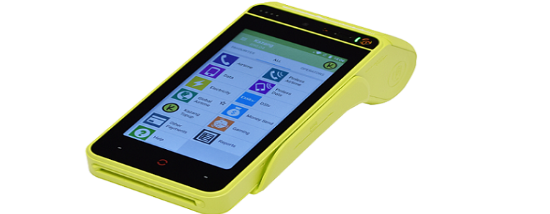
| Purchasing | R 2587.50 including VAT. |
| Rental | Premium rental charge is currently R150 per month in the event that the minimum sales target of R20 000 is not met. |
| Offerings that will be available for sale for your potential customers |
|
| Information required for purchase |
Kindly be advised we also have an option for online vending through our Kazang Mobile App that can be downloaded from the App or Playstore, where you need to follow our registration process. Regards, Once all the information has been provided, we need to forward all this information to the sales team through Freshdesk depending on region. |
| Information required for rental |
|
Below is an overview on where to send each lead application based on the province/region of the potential client:
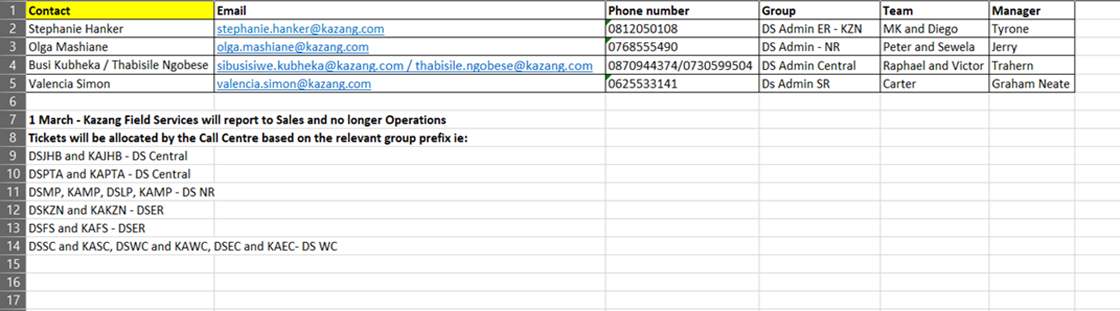
Updating Freshchat Leads
For Freshdesk to create a ticket directly from Freshcaht, the agent would be required to access the active chat. Once the agent has accessed the chat, to provide the potential client with our available options the agent can use the same canned reposes as mentioned above.
Once all actions have been completed to provide the potential client with the necessary information, the newly created ticket MUST BE correctly classified both on Freshdesk and Freshchat and updated to a closed status. All information is to be sent to the Sales Teams.
For external rental sales leads for device rentals, the below information is required to be obtained by the vendor:
Requirement Step | Requirement Summary | Image |
| Step 1 | For all existing vendors that are looking for new devices at their other shop escalations goes to sales queues as above. | |
| Step 2 | Vendor needs to provide with new address and existing reference number | |
| Step 3 | If inquiry is through call ticket needs to be created. | 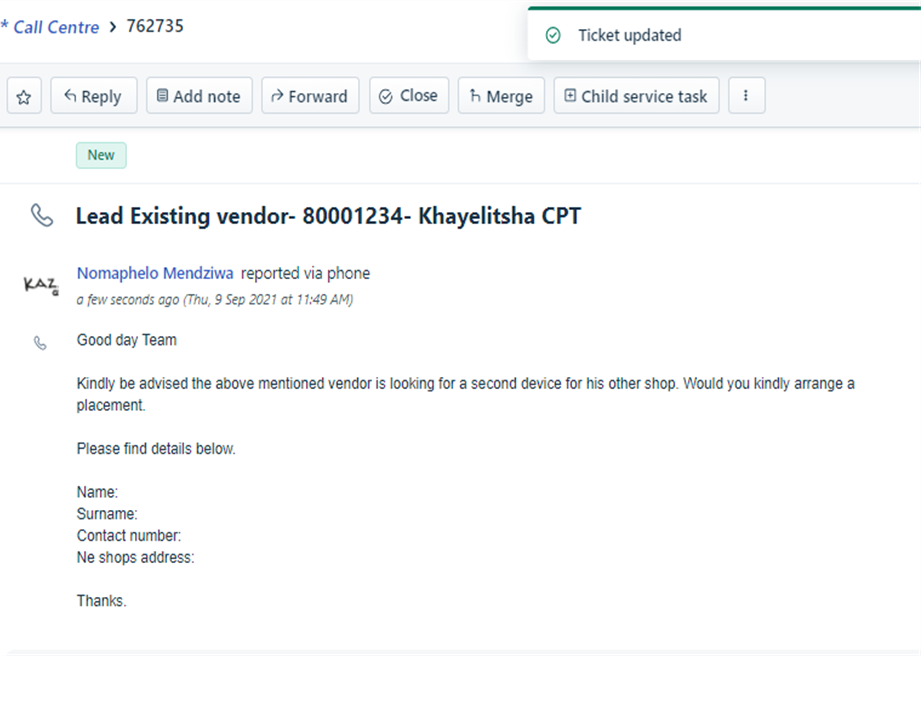 |
Updating Cash Sale Leads
We have an a purchase option available to potential clients that wish to purchase a device to own for the own private business. We refer to these clients as Cash Sales leads.
Below is the guidance steps to follow to request the necessary information to process the lead request:
Action Step | Action Step Summary | Additional Information | Image |
| Step 1 | Request the primary information from the client |
| |
| Step 2 | Escalate the request along with the vendor's details to the External Sales ticket queue | Update the ticket properties with the below detail: Subject Line: purchase of Timpa x-Gauteng-064511XXXX Classification: Sales leads WC Group: External Sales Status: Open Agent: Mandy Adams (Please inform her via an email or WhatsApp that you have assigned a ticket to her. (Mandy Adams) |
|
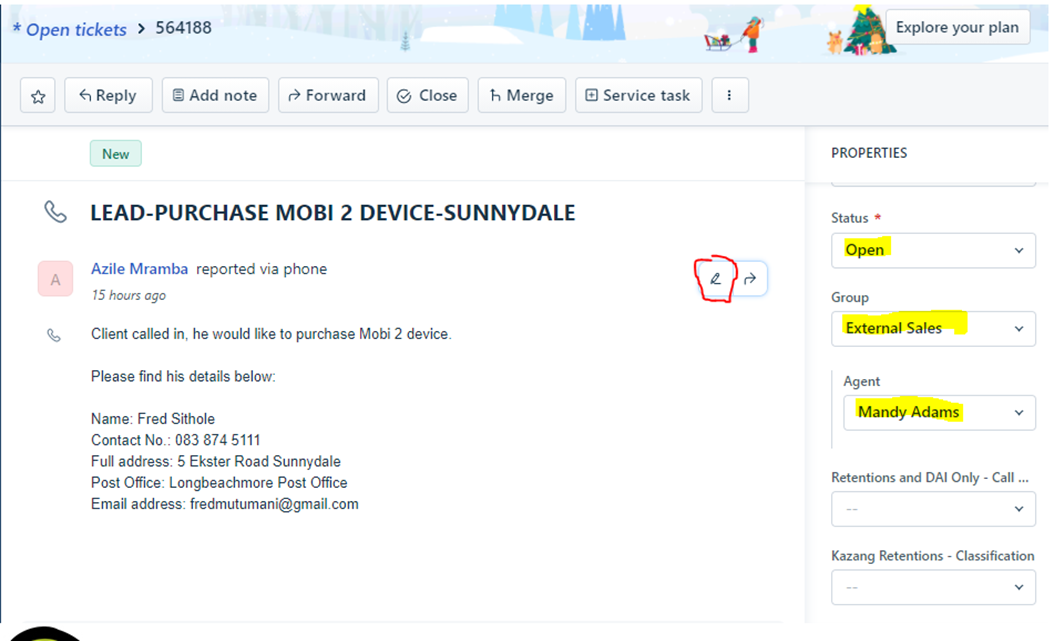
Once the request has now been escalated, this will be picked up by Mandy in the external Sales Team who will then send further correspondence along with a quotation to the vendor which will include the Sales Banking Details for payment and delivery arrangements.
- Mandy will send a quote to the vendor that will include a unique ref that a vendor will use when making payment and the quote will include our sales account number.
- After payment, the device will be sent to the nearest post office that is provided by the vendor and tracking number will be sent. Vendor will need to personally collect the package as we don’t do door to door deliveries.
Spares can be purchased both for Cash and Rental sales in the event that repairs are required for the vendor to continue trading with us.
Key points to note when purchasing spares for these order types:
- All spares for cash sale devices need to be escalated to External Sales group
- All spares for rental devices need to be escalated to respective dispatch regions group for the CRE's to head out to the site and replace the device.
| Cash Sale Escalation Format | 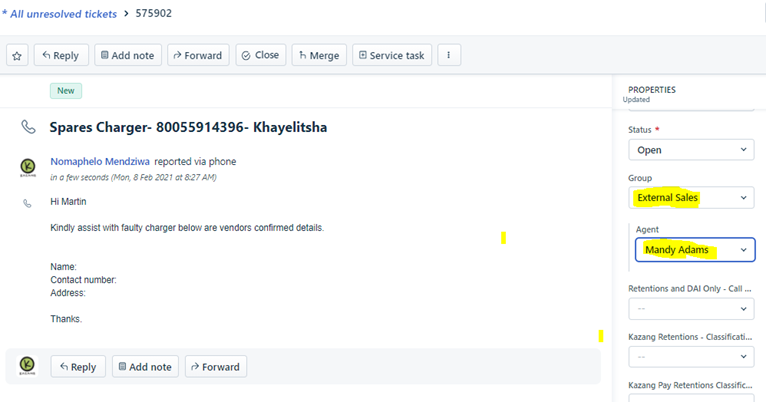 |
| Rental Escalation Format | 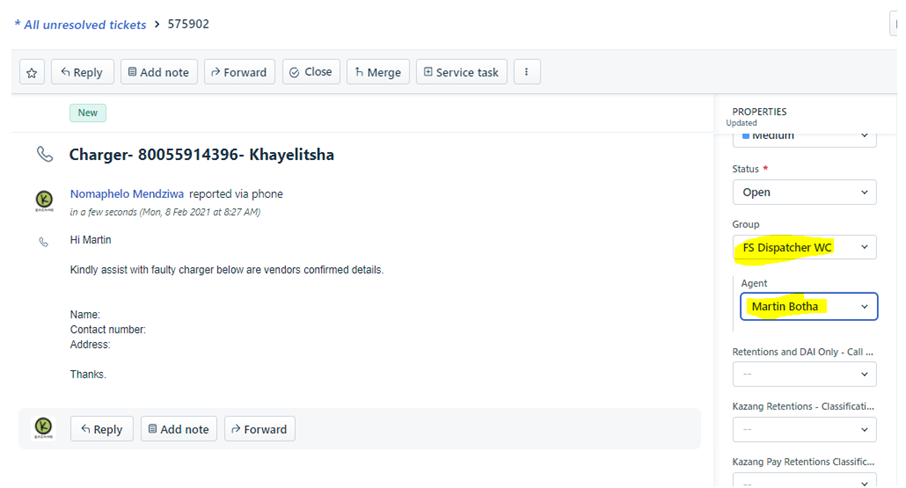 |
Requesting a collection of a Faulty Device
Follow the below guidance steps to successfully Request a Collection for a Faulty Device:
Action Step | Action Summary | Image |
| Step 1 | Identify the method in which the request has come through via Freshdesk, Freshchat or through our Telephone Line | |
| Step 2 | Confirm that the rep has completed and noted down all relevant troubleshooting steps taken to confirm the exact fault with the device | |
| Step 3 | Access the vendor's account on Content Ready using the account number that has been provided | 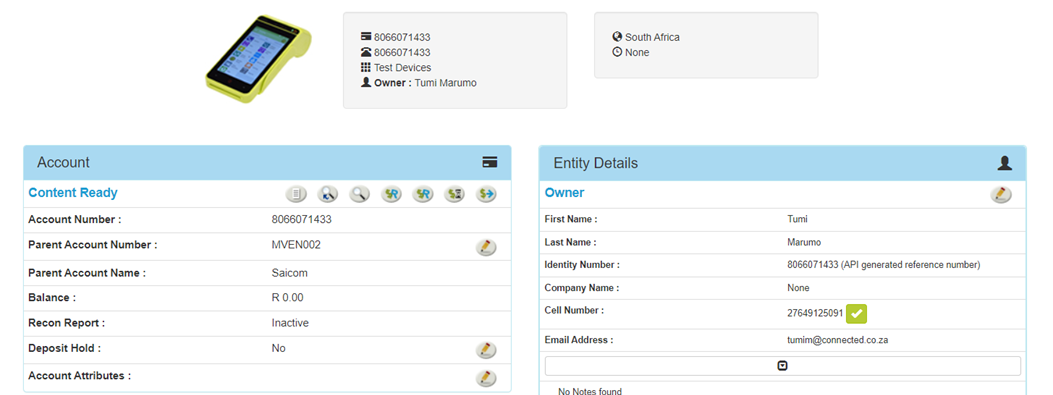 |
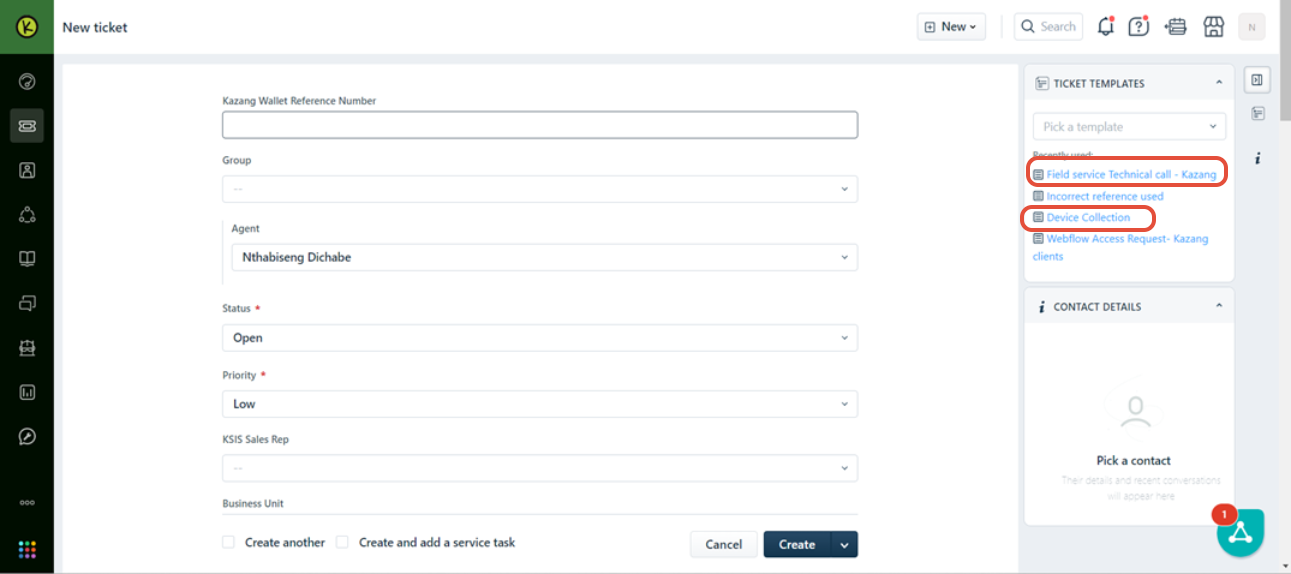
| Step 4 | Confirm that the correct ticket templates have been implemented when raising the request. |
|
| Step 5 | Review all the details are captured accurately on the provided templates | 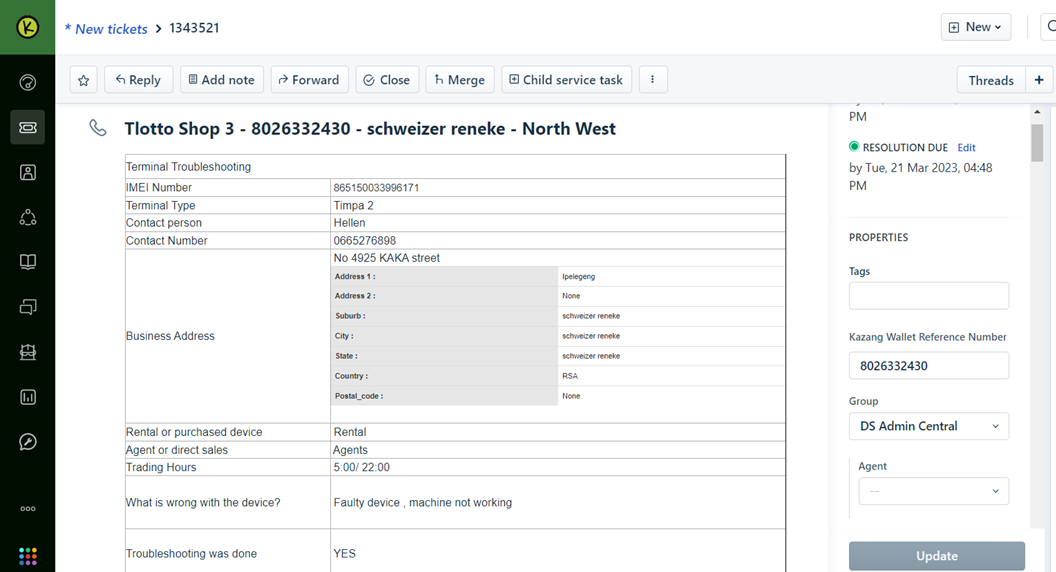 |
| Step 6 | Update the Collection Template that will be sent out to the respective Sales Rep/Agent to complete the collection of the Faulty Device | 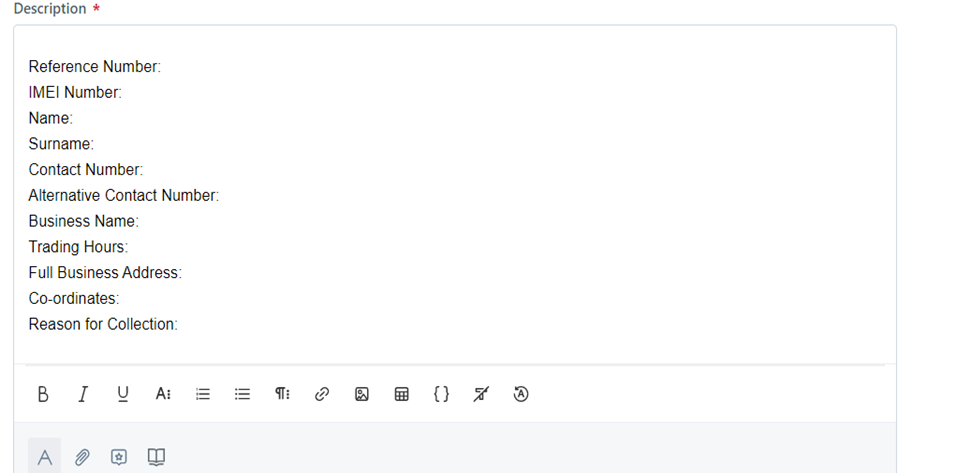 |
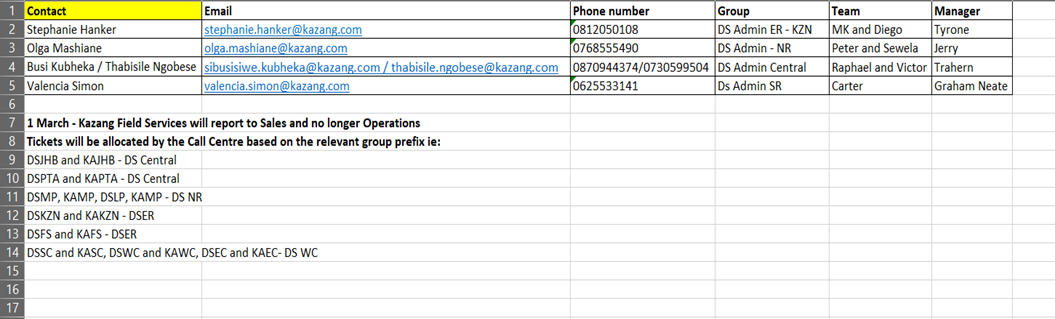
Below is an overview on where to send each Faulty/Collection request based on the province/region of the vendor:

*Have we missed anything in this article?
Email learninganddevelopment@kazang.com should you need any more information to be added onto this article.
Was this article helpful?
That’s Great!
Thank you for your feedback
Sorry! We couldn't be helpful
Thank you for your feedback
Feedback sent
We appreciate your effort and will try to fix the article