
Very often, our vendors or field agents/reps would ask us to send them a report for a certain date range and transaction type. Due to this need, we have made it possible to export data directly from Content Ready.
This feature is only available for money remit products and in this article we will show you how you can filter and export the report.
Once you have exported the report, we will also go through the steps of importing data in a neat and readable format from a CSV file.
The export is available for
- Eco Cash
- Mama Money
- SFX
- MTN SA MOMO
- Hello Paisa
How to filter and export:
1) Open the transactions tab on Content Ready and select the money remit product you wish to pull the report for
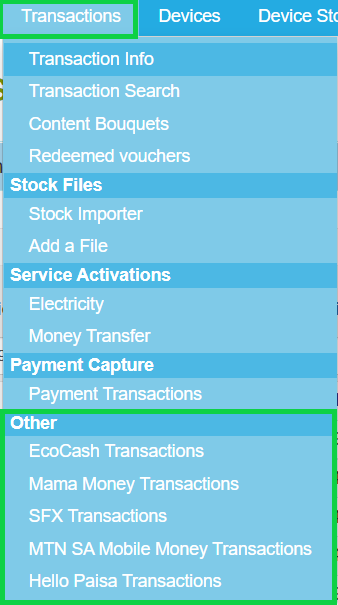
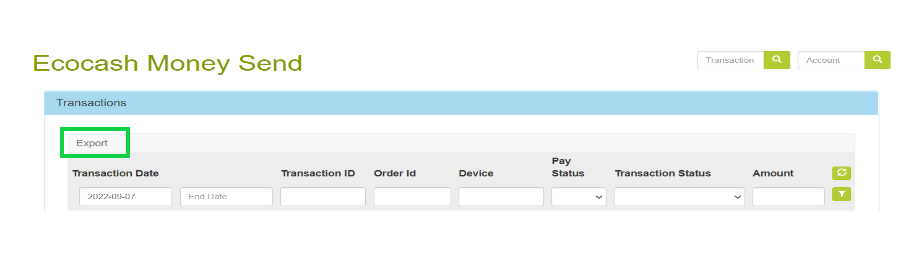
2) Filter according to the request by changing the date range, entering the account number etc. Note that filter options for each product may differ. After filtering, you are able to click on export (Highlighted in green below).
Below we have an example of the filter options for Eco Cash
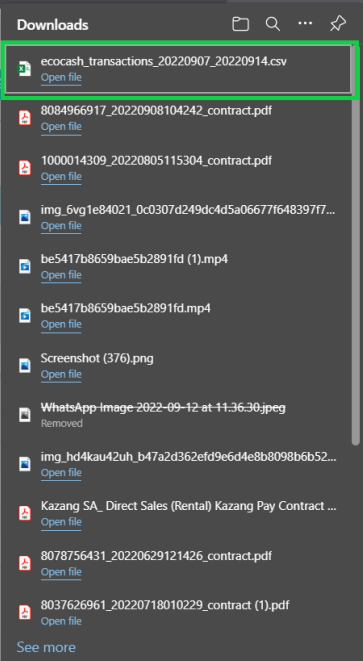
3) The export will be downloaded directly to your laptop and will be saved under your downloads tab.
4) When opening the report, you will see that the information looks a bit funny. This format is called CSV.
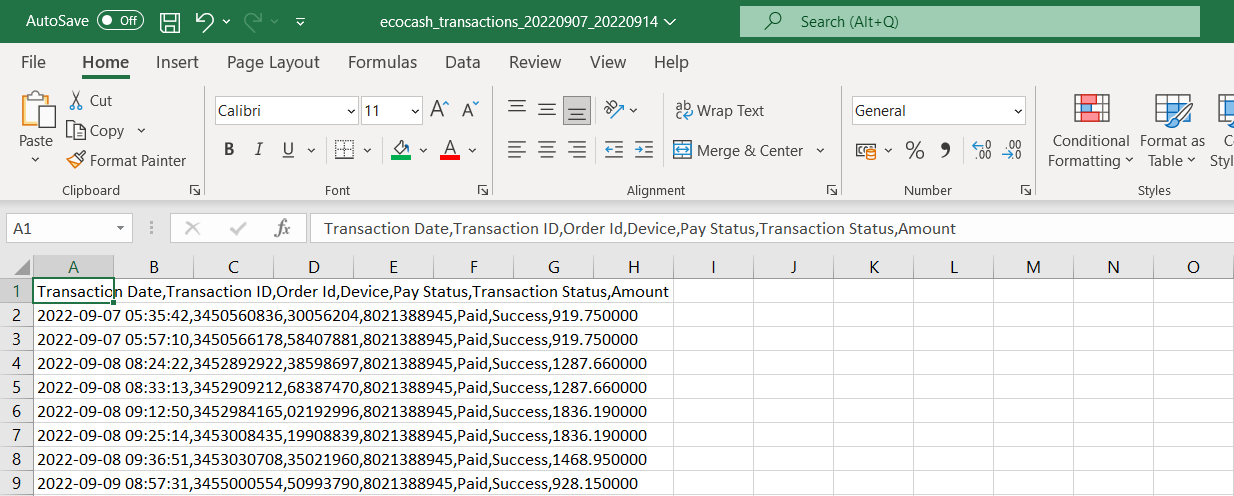
5) To fix this we will first open a new tab on the excel spreadsheet by clicking on the + icon

6) On the new tab, first click on Data, and in the Data menu, click on "From Text/CSV"

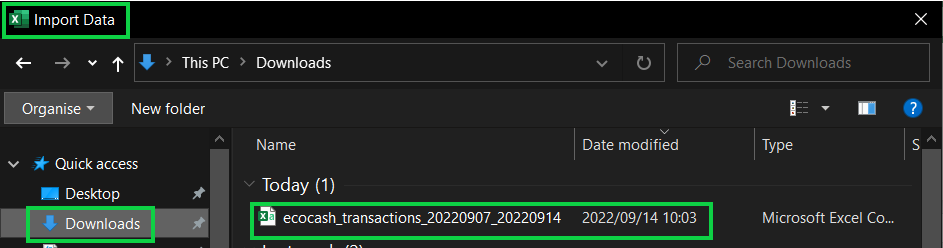
7) A "import data" pop up will now appear on your screen. This is so you can select the folder that you want to import the CSV data from. Navigate to downloads and select the export. Click on the export and then click on "Import"
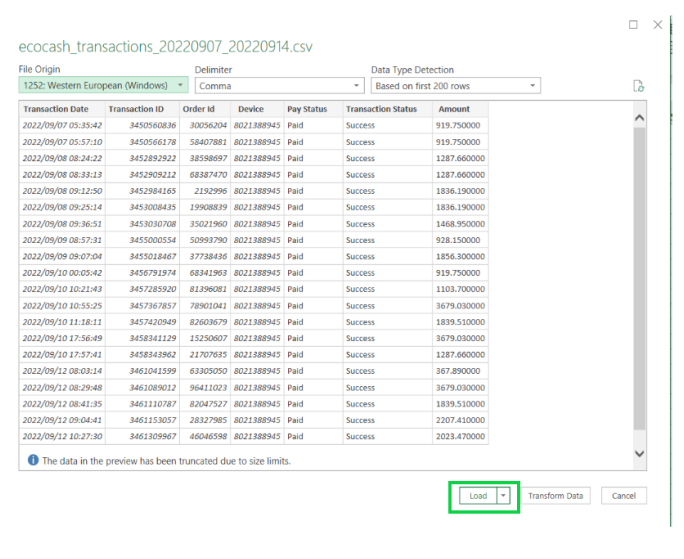
8) You will now see another pop up appear. This is to show you how the information will be presented. On this pop up, please click load
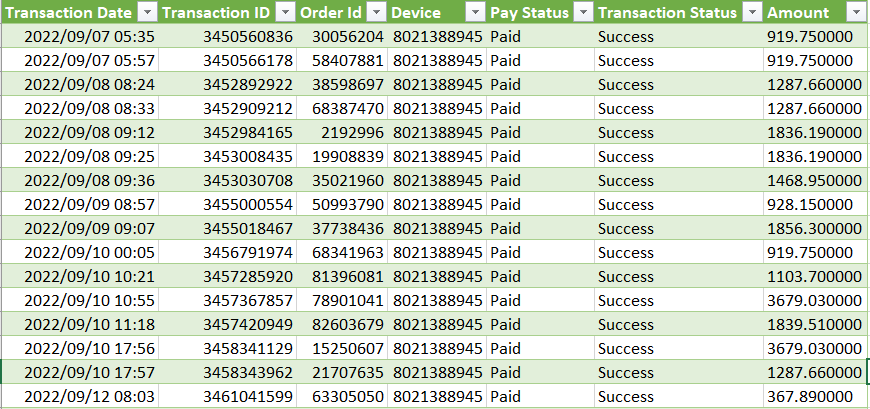
9) After clicking on load, you will see that the information will now appear in a neat and readable format that can be saved and shared with the vendor/agent/rep.

Was this article helpful?
That’s Great!
Thank you for your feedback
Sorry! We couldn't be helpful
Thank you for your feedback
Feedback sent
We appreciate your effort and will try to fix the article