Overview
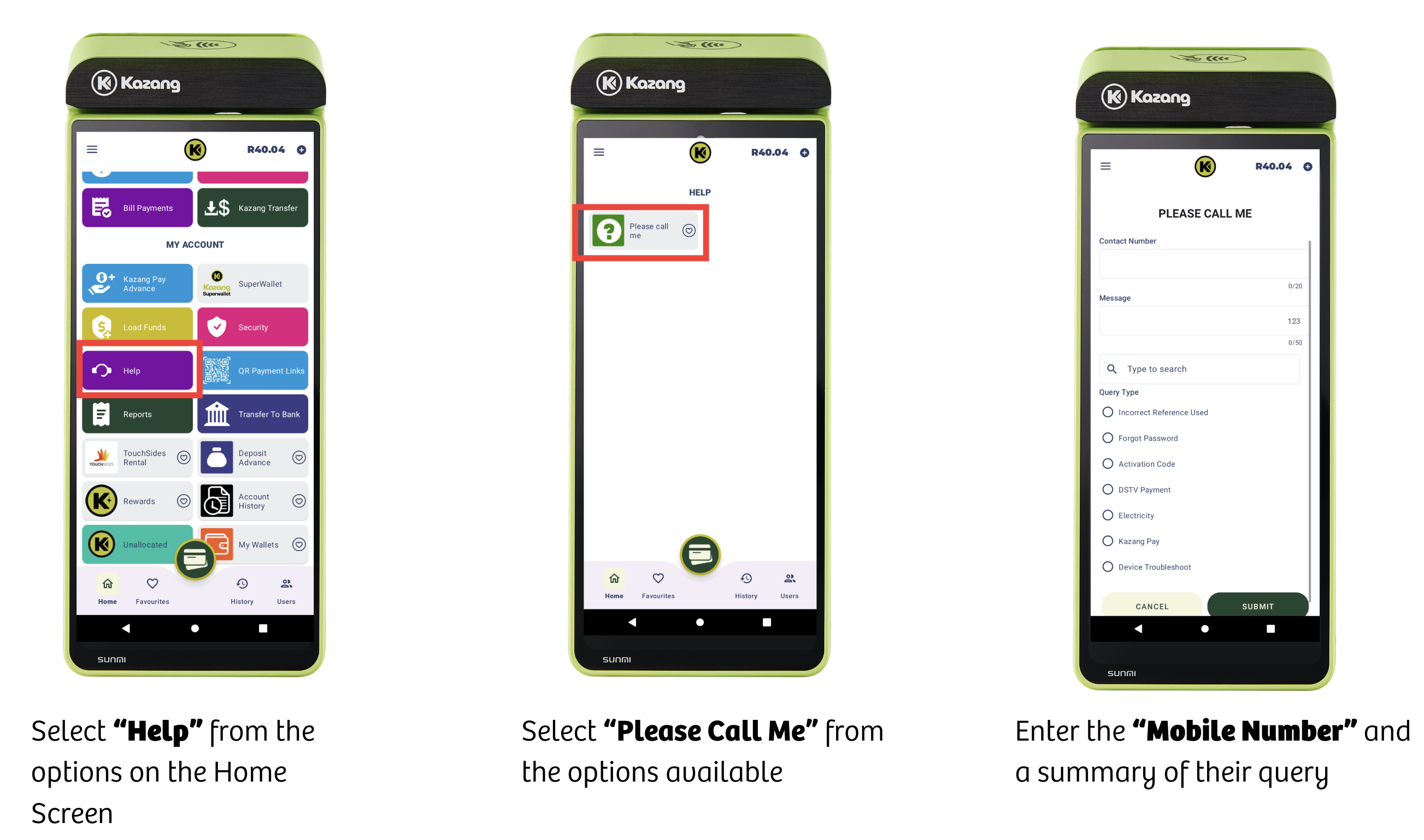
Our vendors have the ability directly from their devices to send out a Please Call Me request to our Contact Centre agents for assistance. The Please Call Me request will come through our Freshdesk ticketing platform for our agents to assist with any queries that our vendors may have.
The subject line of this request from the vendor MUST read Please Call Me and the vendor must request to call them on the mobile number that matches our records. It is important to note that our vendors can only send ONE Please Call Me a day through their devices and MUST describe their query from the options available on their device.
Device Information - How to Send a Please Call Me request
Working a Please Call Me Query
When a Contact Centre agent is assigned a Please Call Me ticket request, it is important that their first action is to respond to the ticket highlighting that the request has successfully been picked up and that contact will be made in due time. This maintains our standard SLA response standards when dealing with our vendors.
Below is a preview of how the Please Call Me request will come through onto Freshdesk:
| Image 1 | 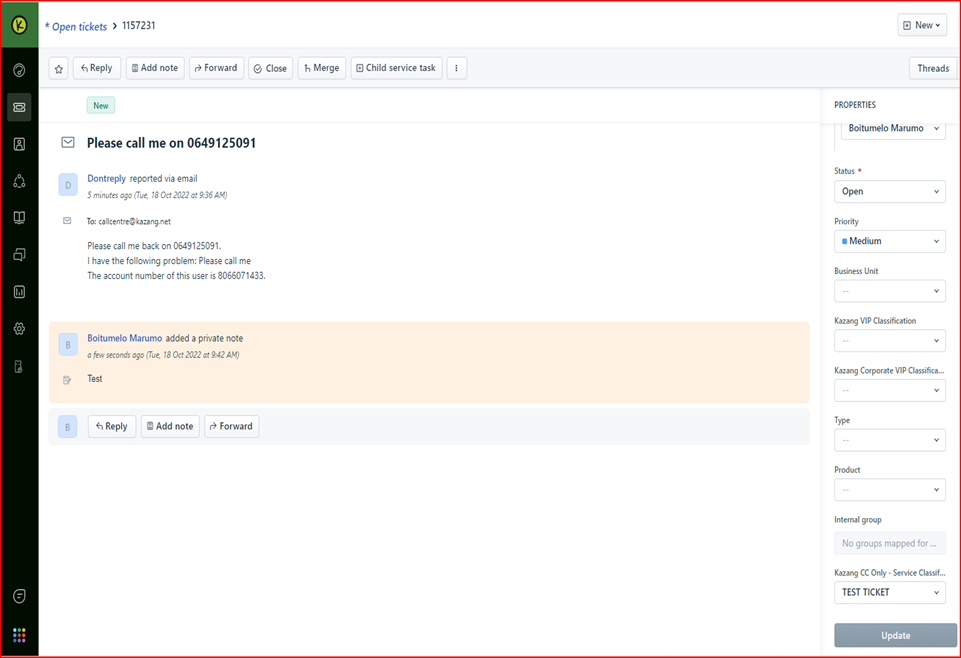 |
| Image 2 | 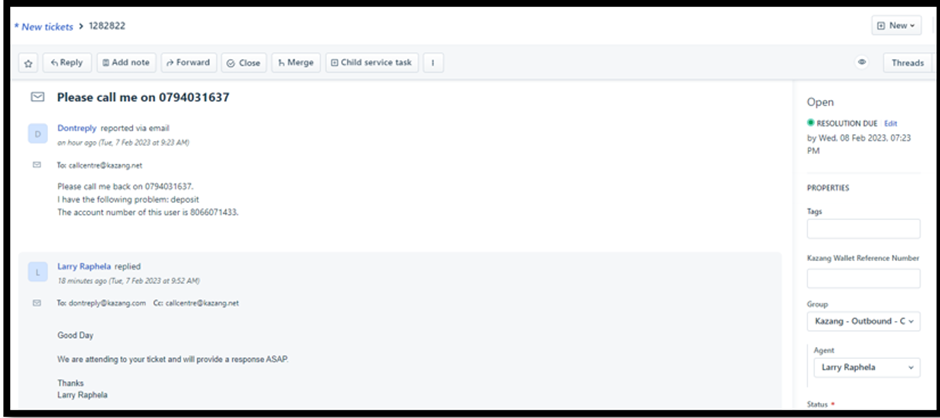 |
All Please Call Me requests will be handled by our Outbound Contact Centre Team after receiving these requests directly from our Inbound Teams.
Follow the below guidance steps to successfully manage the Please Call Me request from the vendor:
Action Step | Action Summary | Image |
| Step 1 | Reply with our standard First Response on the ticket that has been raised | 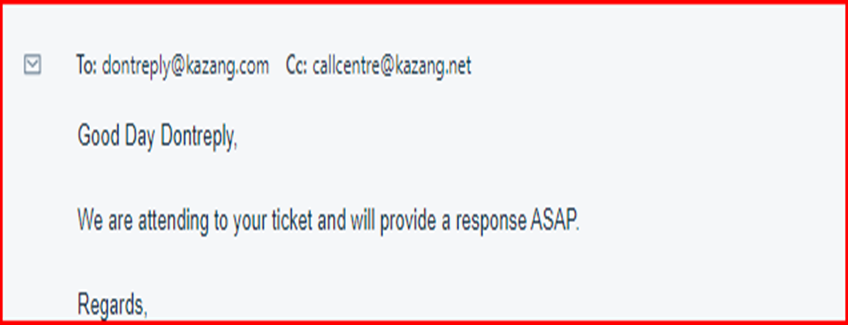 |
| Step 2 | Update the group on the ticket from Inbound Group to Outbound Group | |
| Step 3 | Contact the vendor on the mobile number on file using the OneContact Agent system and assist the vendor to achieve resolution to their query | 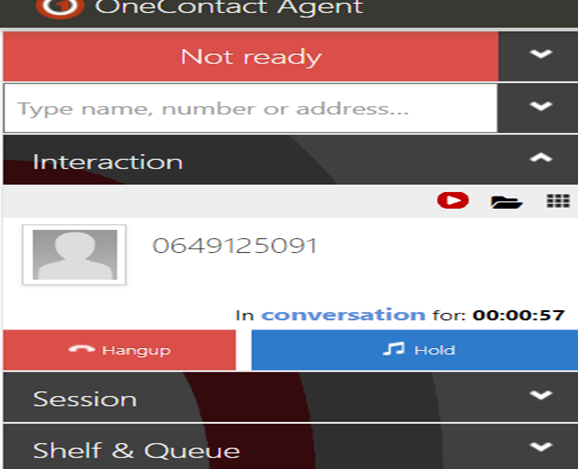 |
| Step 4 | Add clear notes to the ticket of all actions taken to resolve the vendor's query. At no point should an agent just attach a screenshot of the call log as evidence that contact was made |
Outbound Call Centre Script
For quality and training purposes, to ensure that we continue to offer all our customers and vendors the highest levels of service, when working a Please Call Me request our agents MUST follow the Outbound Call Centre Script verbatim.
Script Guidance | |
| Greeting | Good day sir/madam you are speaking to Nthabiseng Dichabe I am calling you from Kazang Connect. Is this a convenient time for us to speak? |
If Yes, the vendor can speak to resolve the query: | Thank you very much I am calling regarding the please call me request that you have sent us If I may ask, who am I speaking to? Thank you. John How may we assist you today? |
If No, the vendor is unable to speak at point of contact: | Kindly provide me with a convenient time that I can call you back, or you are welcome to send us any of your queries to 3 of our other platforms which are email help@kazang.com, what’s app chat 0718712173 call us direct on 011 581 6700. |
Key Points to Remember
- In the event that the vendor has an Invalid number/ voicemail, the agent MUST check Content Ready BEFORE closing the ticket for an alternative number to call.
- If the vendor is querying their Wallet Reference and provides the IMEI number of their device, the agent MUST check the reference number on Content Ready for record keeping purposes.
- The agent MUST attempt a minimum of TWO call attempts on one day before sending the vendor an email highlighting that contact has been unsuccessful before closing the ticket.
- It is the responsbility of the agent to monitor and manage all responses from the customer or vendor when the ticket has been updated to a pending status for feedback.
- If the vendor’s query is not included on the outbound scope, the outbound agent will move the ticket to the Kazang Inbound group on Freshdesk and update the subject line.
- Canned Responses MUST ALWAYS be used whenever responding to the customer or vendor via Freshdesk email and all Tags to be updated based on the nature of the query.
- Lastly, it is important to update the below detail before closing the ticket after resolution has been achieved:
- Classification - classify as per the outcome of the query.
- Subject line - update as per the outcome of the query
*Have we missed anything in this article?
Email learninganddevelopment@kazang.com or operationssupport@kazang.com should you need any more information to be added onto this article.
Was this article helpful?
That’s Great!
Thank you for your feedback
Sorry! We couldn't be helpful
Thank you for your feedback
Feedback sent
We appreciate your effort and will try to fix the article