
Overview
We implemented a Dual Signatory process whereby one person must initiate the transfer and another must approve it after verification. A new Trust Centre has been created and only staff members that are assigned to this Trust Centre will have the ability to approve requests.
Process
The process to initiate a transfer is still exactly the same. However, after initiating the transfer, a message will pop up on CR to indicate the approval is required to complete the transfer. No requests will be approved without a Freshdesk ticket that clearly explains why the transfer is required. A new Ticket Template has been create on Freshdesk to make this process easier.
Creating a Ticket
NB!!!! The ticket MUST be created before the transfer is processed so that the ticket number can be entered in the “Reference” field.
1) At the top of the Freshdesk Ticket screen, select the “New” button, then select “New Ticket”.

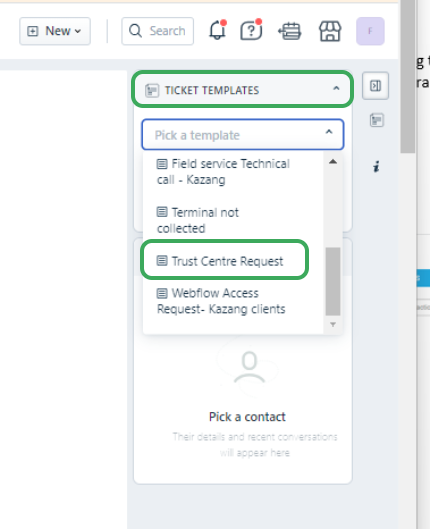
2) Once on the new ticket page, navigate to "ticket templates" on the right. From the dropdown menu, select "Trust centre request".
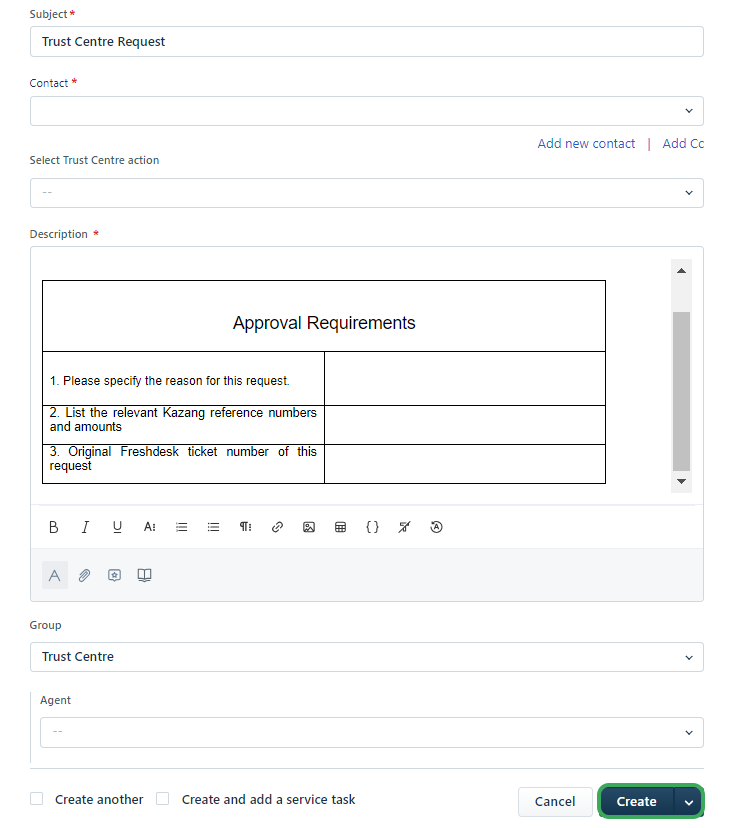
3) A pre-populated template will open. The fields must be completed as follows:
* Subject - Do not change the Subject
* Contact – Select yourself as the Contact
* Select Trust Centre Action - Select the relevant Trust Centre Action required
* Description – Enter the reasons for the request and specify the relevant account (reference) numbers and amount/s as well as the Freshdesk ticket number relating to this request.
* Group – Do not change
* Priority – Do not change
Select the "Create ticket" button. A ticket will now be created for a member of the Trust Centre to approve the request.

*Have we missed anything in this article?
Email operationssupport@kazang.com should you need any more information to be added onto this article.
Was this article helpful?
That’s Great!
Thank you for your feedback
Sorry! We couldn't be helpful
Thank you for your feedback
Feedback sent
We appreciate your effort and will try to fix the article