FORGOT MY PASSWORD
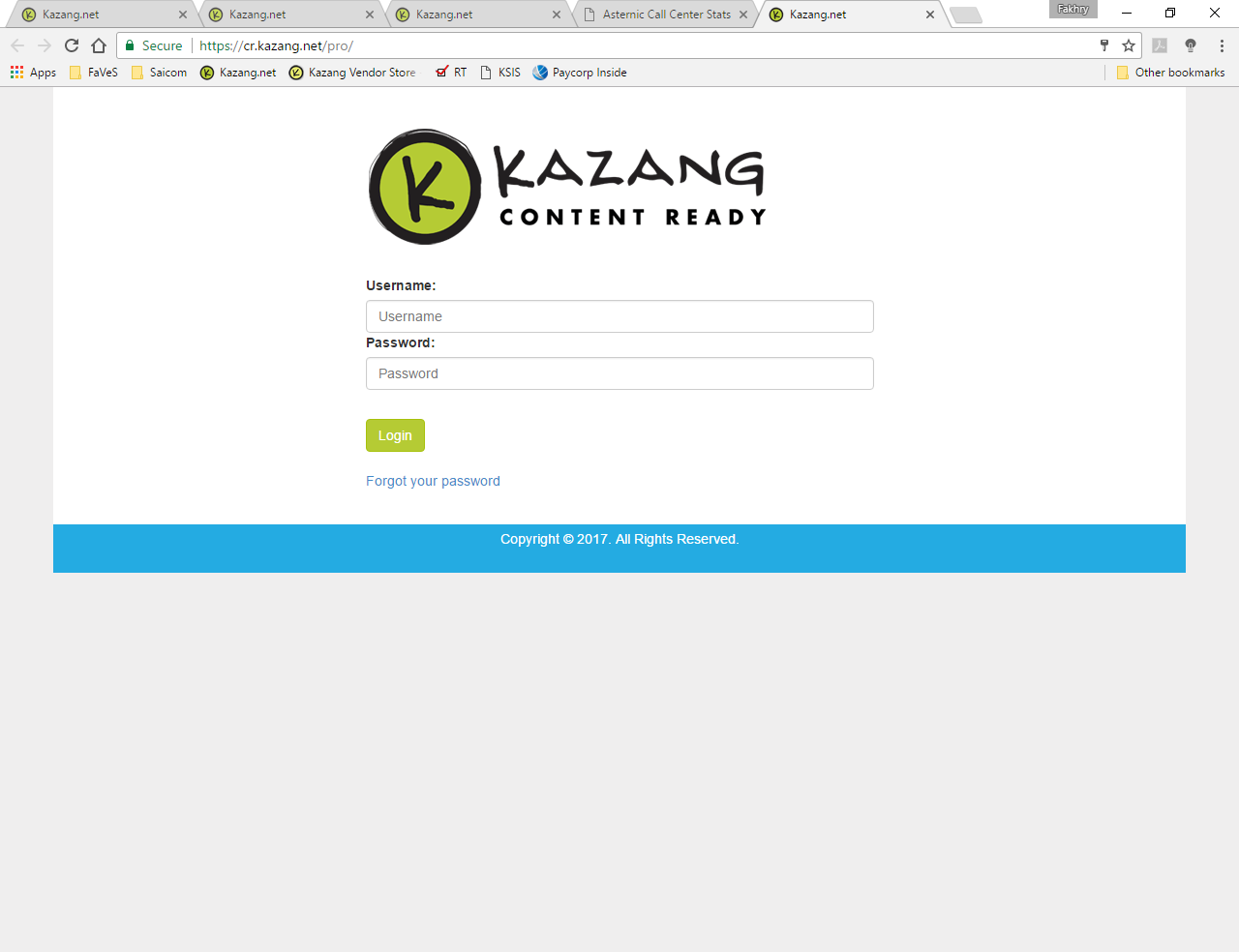
1. On the Login screen – click FORGOT YOUR PASSWORD:
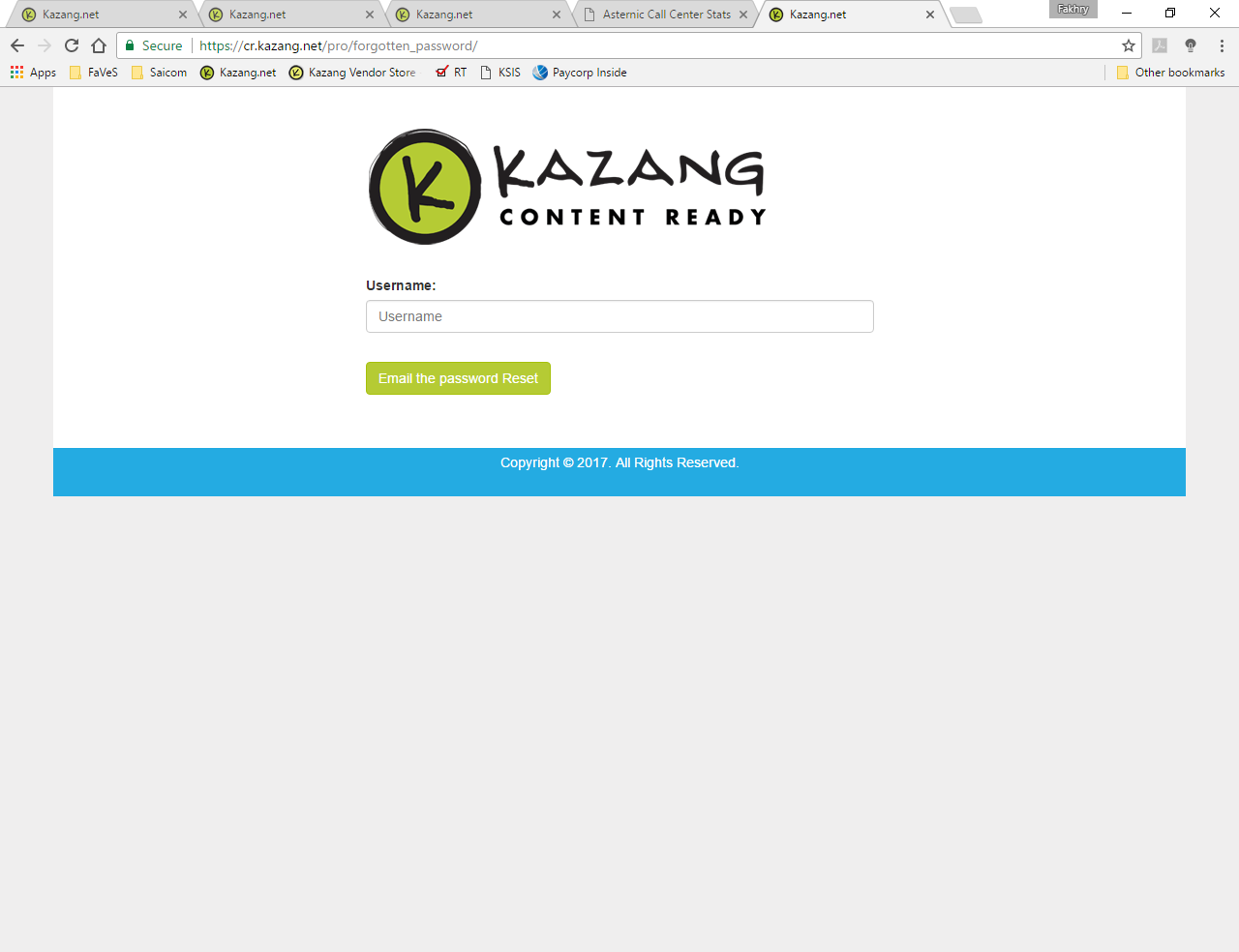
2. Enter your USERNAME:
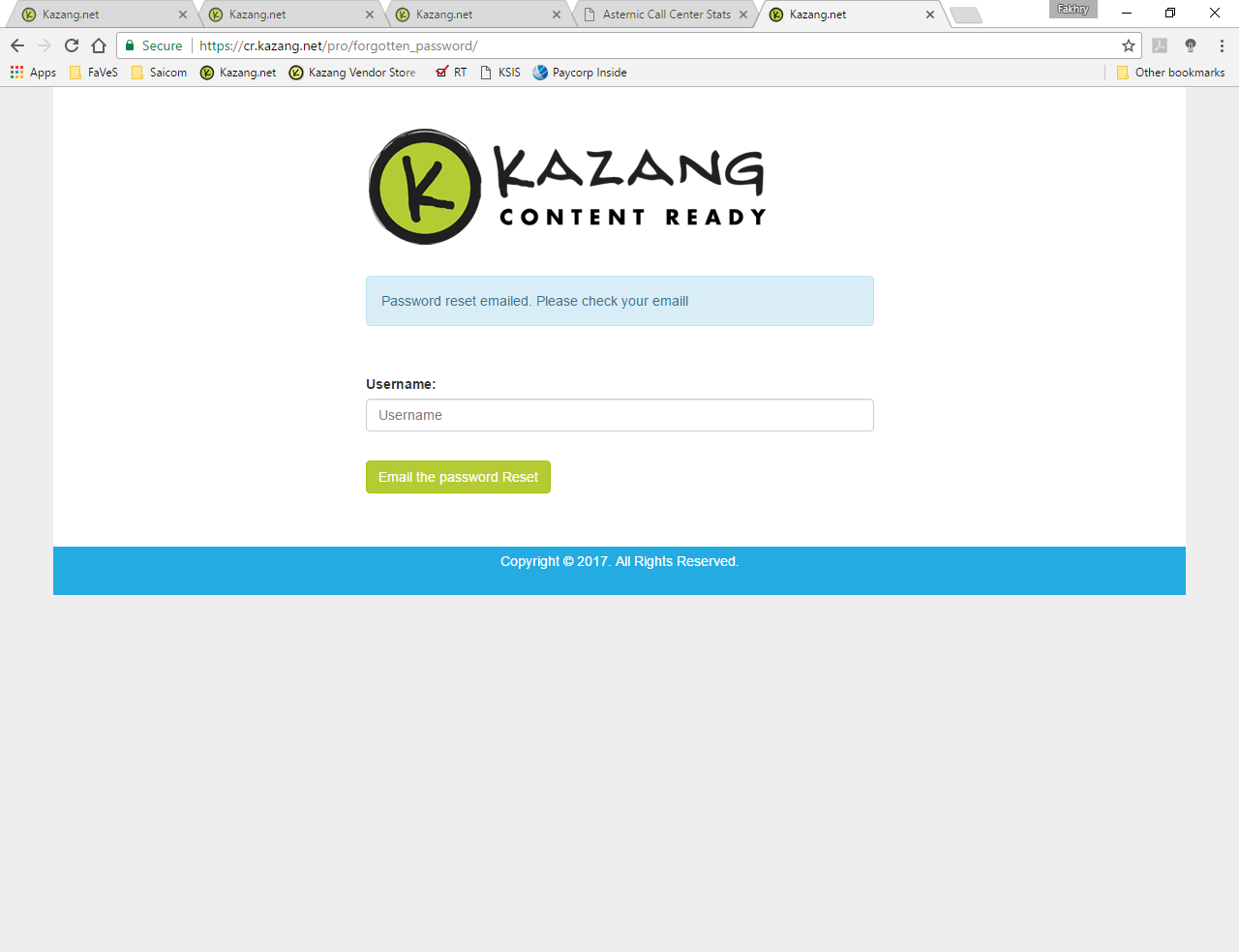
3. And you are done. An email will be sent to you and will include a link which you need to follow.
If the above does not work – It could be that we do not have a valid email address for you. In which case you will need to send us your username and email address so that we can check and update.
4. Once you have received the email with the link it will take you to the below screen:
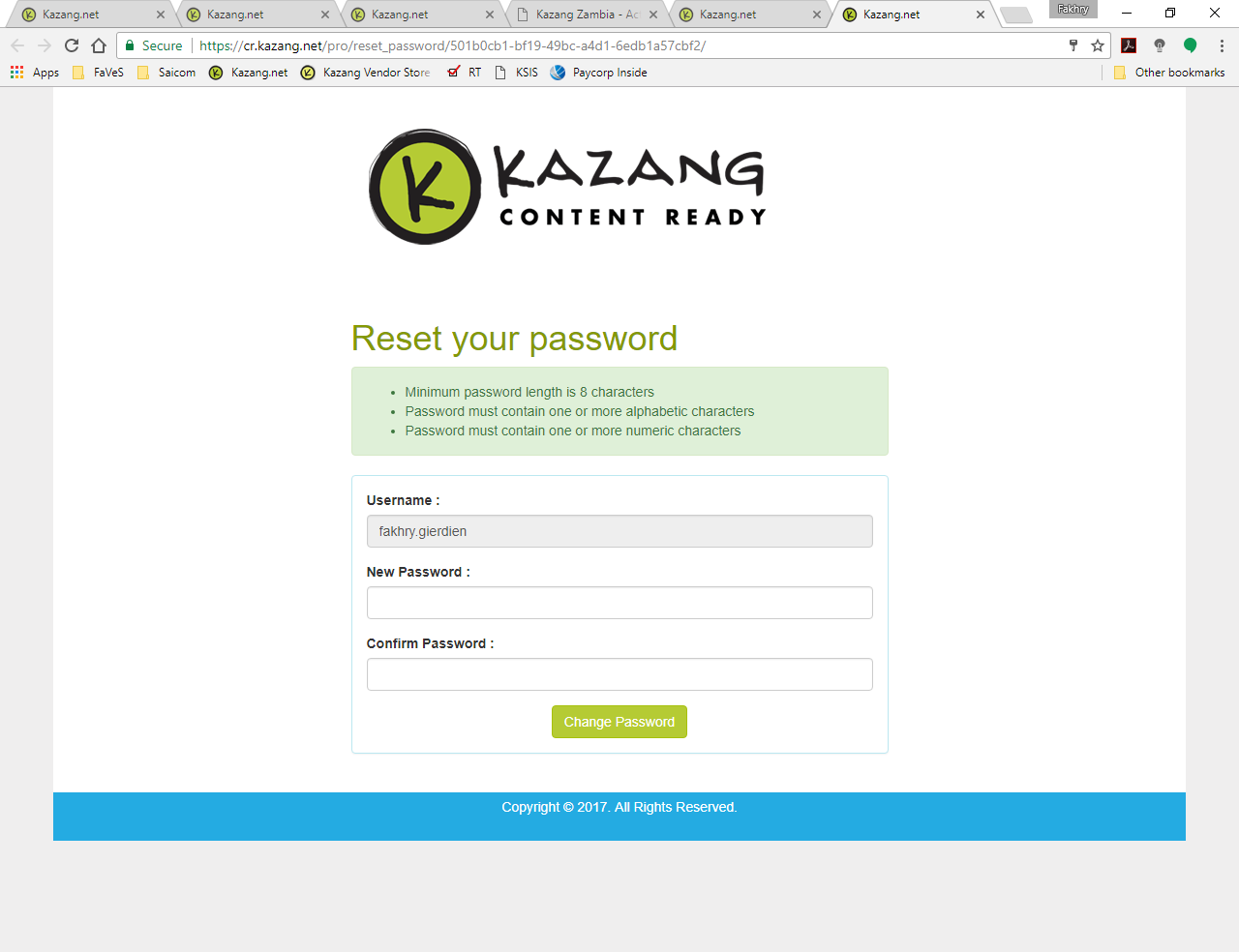
NEW PASSWORD: Here you choose a new one to be used
CONFIRM PASSWORD: Here you enter the same password chosen above
CHANGE/RESET YOUR PASSWORD
If you are requested to change your password (Which happens every 45 days). You will be prompted with the below screen:
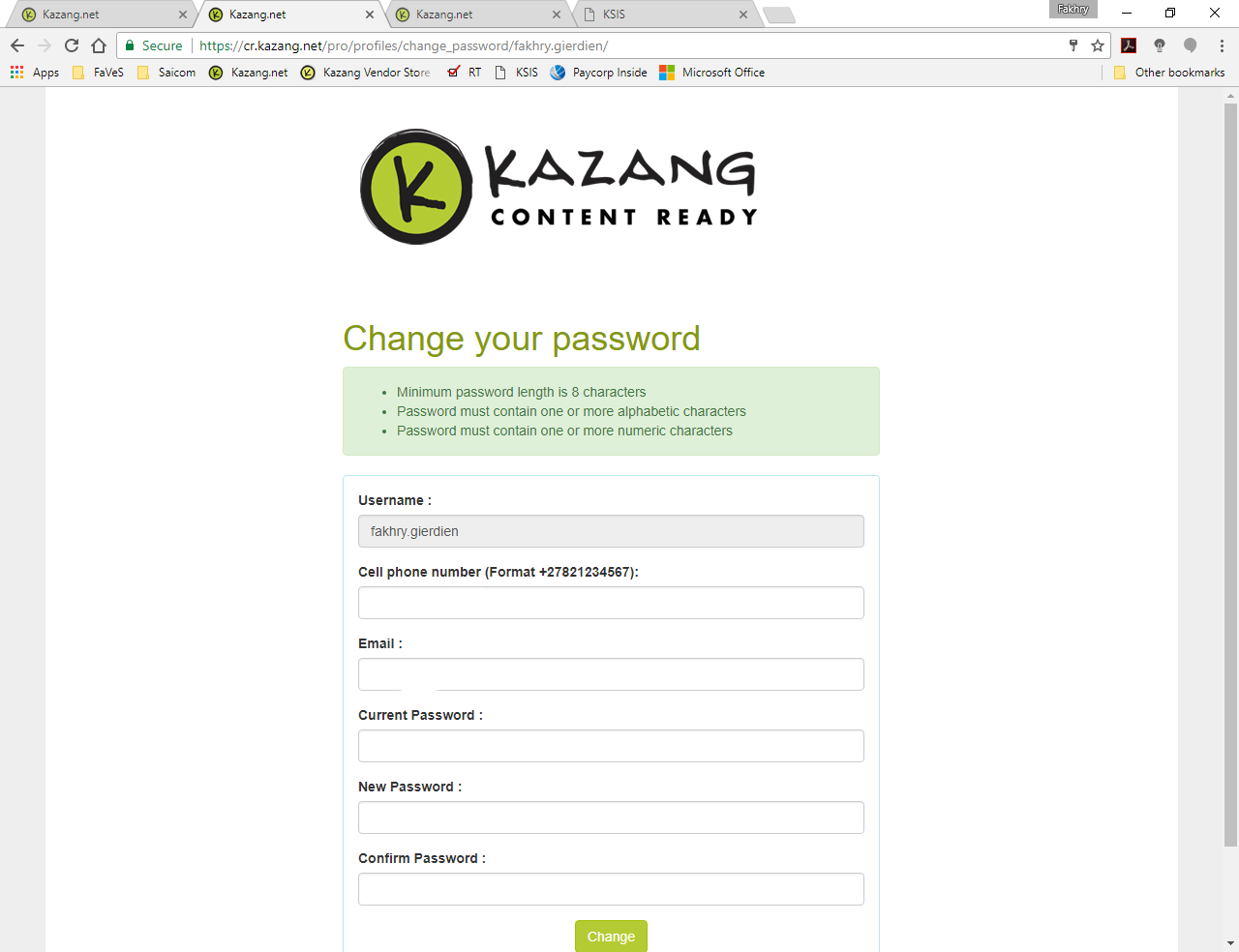
You MUST enter your cell phone number and Email.
CURRENT PASSWORD: This is your old password
NEW PASSWORD: Here you choose a new one to be used
CONFIRM PASSWORD: Here you enter the same password chosen above
Was this article helpful?
That’s Great!
Thank you for your feedback
Sorry! We couldn't be helpful
Thank you for your feedback
Feedback sent
We appreciate your effort and will try to fix the article