
Overview:
Under normal circumstances a Kazang account would be linked only to the IMEI number of the device that it is registered on. However, when we activate multiple channels it means that we are allowing two devices to use one account number.
An example of this would be if the vendor uses his Android App account number and password to sign in to their physical device, or vice versa.
An important thing to mention is that one of these accounts should not be registered.
e.g - If the vendor has a device which has been registered and a Android App which has not been registered then multiple channel access will work. However, if both the app account and physical device have been registered and both have their own account numbers, then multiple channel access would not work as each one is already linked to the device it has been registered on and would not be able to connect to another channel.
Needless to say that this action could open up the door for possible fraud and therefor we take extra precautions and do thorough security checks before activating multiple channels.
This request has to be sent via email for auditing purposes, this means that if the vendor calls or sends a Whatsapp message, then they would be asked to send their request via email instead.
Process for level 1 Call Centre Team to follow:
1) Do a security check by requesting the vendor to confirm the following details on their Kazang account:
- Name and Surname used on their Kazang account
- Full address listed on the account (If the shop location has changed then log a ticket for the field agent to visit the new shop and geolocate the device from the new address. Advise the vendor that we can only attend to their request after the device has been geolocated)
- ID number (if captured)
- IMEI number of their device
- Confirm that it is the owner of the account (Especially if the email address they are messaging from does not correspond with the one we have saved on CR - if any)
2) When the vendor responds with the requested information, please check that all details confirmed are correct by comparing it to their Kazang Account.
- If not correct: Advise the vendor that we are not able to proceed with their request as they have failed our security checks and close the ticket.
- If correct: Then respond to the vendor to advise them that you are escalating their request to our senior team for approval. Assign the ticket to our CC Escalations Ticket queue and assign it to either Buyiswa Ciliwe or Veronica Madonsela.
Process for level 2 Call Centre Team to follow:
1) Double check the security questions to ensure they were all answered correctly.
- If not correct: Respond to the vendor and advise them that we are not able to fulfil their request
- If correct: Then proceed with the steps below
2) Filter with the account reference on CR

3) Add a note including the ticket number + multiple channel access
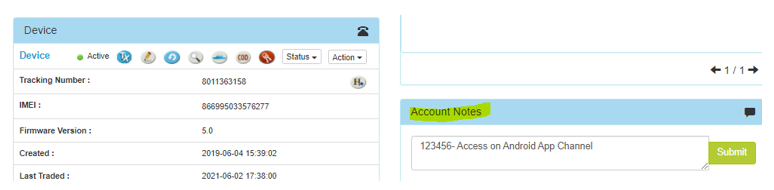
4) On the left hand side of the CR account, you will see an option that says Last Channel Connected On. The channel that is listed next to this option is the current channel that the account is linked to.

5) To add an additional channel, click on the edit pencil next to the Locked Channels options

6) From the menu that opens up, select the relevant channel and make sure that the current channel is also selected. Meaning that there should now be two channels selected.
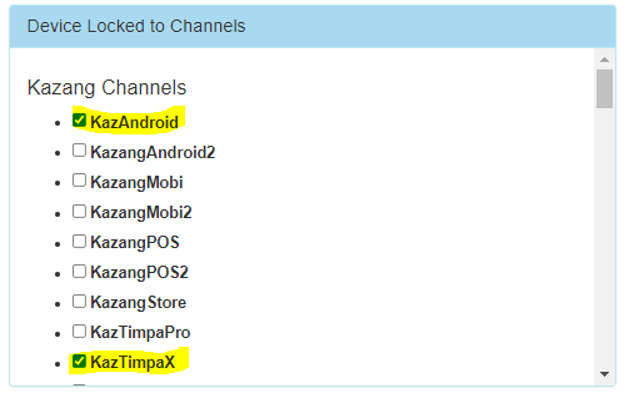
7) Once both channels have been selected, scroll down and click on submit
8) Respond to the vendor to inform them that multiple channel access has been granted and close the ticket.
Our different channels:
- KazAndroid Mobile APP (downloaded on Android cell phones)
- KazangAndroid2 Timpa 2/3 and Mobile APP
- KazangMobi Mobi 1
- KazangMobi2 Mobi 2
- KazangPOS Timpa Touch
- KazangStore Online Store (Website)
- KazTimpaPro Timpa Pro
- KazTimpaX Timpa X

*Have we missed anything in this article?
Email jason.ariefdien@kazang.com should you need any more information to be added onto this article.
Was this article helpful?
That’s Great!
Thank you for your feedback
Sorry! We couldn't be helpful
Thank you for your feedback
Feedback sent
We appreciate your effort and will try to fix the article