Overview
Kazang devices are not immune to unfortunate events and in most cases do fall victim to theft from our vendors premises. Our Support Team will be required to assist our vendors through this process of deactivating the stolen devices to get them trading again as soon as possible, and in the same instance understand the sensitive nature of these cases when they are received into our contact centre.
In this article we will outline the required process steps to follow to ensure operational compliance when dealing with these requests.
Stolen Device Deactivation process
When a vendor has contacted us stating that their Kazang device has been stolen, you must now begin the process to deactivate the stolen device. The request to deactivate the stolen device, although requested by the vendor, the channel for these query types to reach the contact centre and Support Team are:
- Telephone Call
- FreshDesk (Email)
- FreshChat (WhatsApp Webchat)
It is the vendors responsibility to complete the actions outlined to ensure that the stolen device is deactivated in a timely manner. By deactivating the device, it will do the following to ensure that vendors trading is not negatively impacted by:
- Clear the COD for the device
- Clear the Registration details for the device
- Change the Account Status to Inactive
- Remove the SIM linked to the IMEI Number of the stolen device
- Remove the IMEI Number linked to the vendors account
- Change the status of the IMEI Number to Disabled
Vendor Requirements
To begin the deactivation process for the vendors stolen Kazang device, the vendor must do either of the following actions at their nearest police station
- A stamped affidavit
- Open a case of theft
1) Stamped Affidavit
For the vendor to obtain the affidavit will provide with enough information to successfully have a replacement Kazang device sent out and their account reactivated in an effective and timely manner. You must advise the vendor that the below details is key to have us accept the document.
If any of these requirements are missing from their affidavit, it may cause delays with issuing a new device and reactivating their Kazang account.
Affidavit Guidelines:
- The writing should be clear and readable
- Shop owners’ full name and surname must be included.
- Shop owners’ identity, passport or asylum number must be included.
- Provide a detailed explanation of how the device was stolen (Include the date and time of the incident)
- Include the reference number of the device (Kazang account number)
- If more than one device was stolen, each device must have its own individual affidavit made. For security reasons, we do not accept more than one account number listed on a single affidavit.
- If there is space left underneath the writing on the affidavit, then a line must be drawn through the rest of the open lines by the presiding officer. This will ensure not only the validity of the affidavit but also that more information is not added after the affidavit has been created at the police station.
- The affidavit must include a stamp from the police station with the date and signature of the presiding police officer.
- If any mistake was made on the affidavit, a new one must be created. Kazang will not accept an affidavit that had any corrections made on it.
2) Theft Case has been Opened
if the vendor has proceeded to open a case of theft at their nearest police station, we only require a clear picture of the SMS that they have received with their Police Case Number. The received Case Number will be used by Kazang for security and verification purposes.
Support Agent Requirements
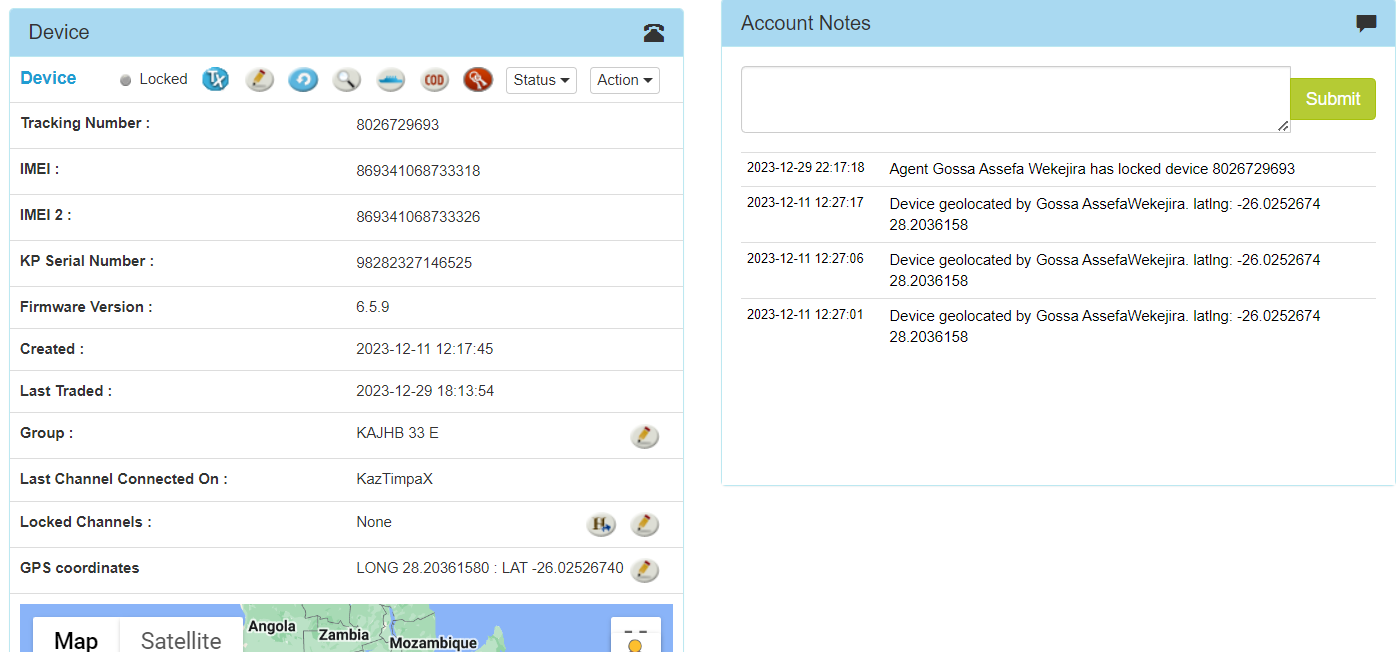
You will be required to update the vendors status on Content Ready with the details received around their stolen device. Deactivating the device on Content Ready can be completed in the highlighted simple steps.
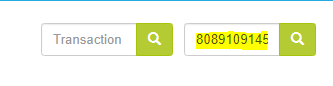
Step 1 - Filter/Search for the vendors account
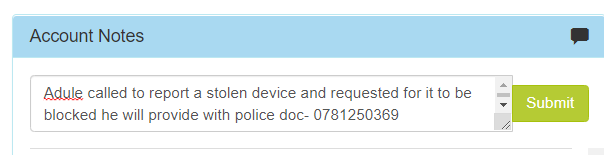
Step 2 - Update Content Ready with details notes from the vendor and also with the respective Field Rep/Agent stating that
the Kazang device was stolen and a request for it to be blocked has been made.
Vendor Request - Capture the name of the vendor that has requested that the stolen device be deactivated and blocked. If a 3rd Party has made contact on behalf of the vendor, you must capture the Full Name and Surname and relation to the vendor of the 3rd Party.
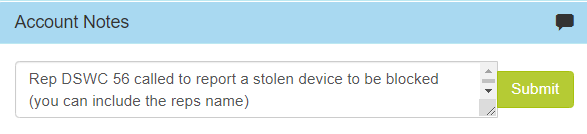
Field Team Rep/Agent Request - Capture the Rep Code and also the Full Name and Surname of the rep that has requested for the stolen device to be deactivated and blocked on Content Ready.
Step 3 - Update the status of the stolen device on Content Ready to Locked. Capture in the notes that we are awaiting the Police Documents to be received from the vendor.
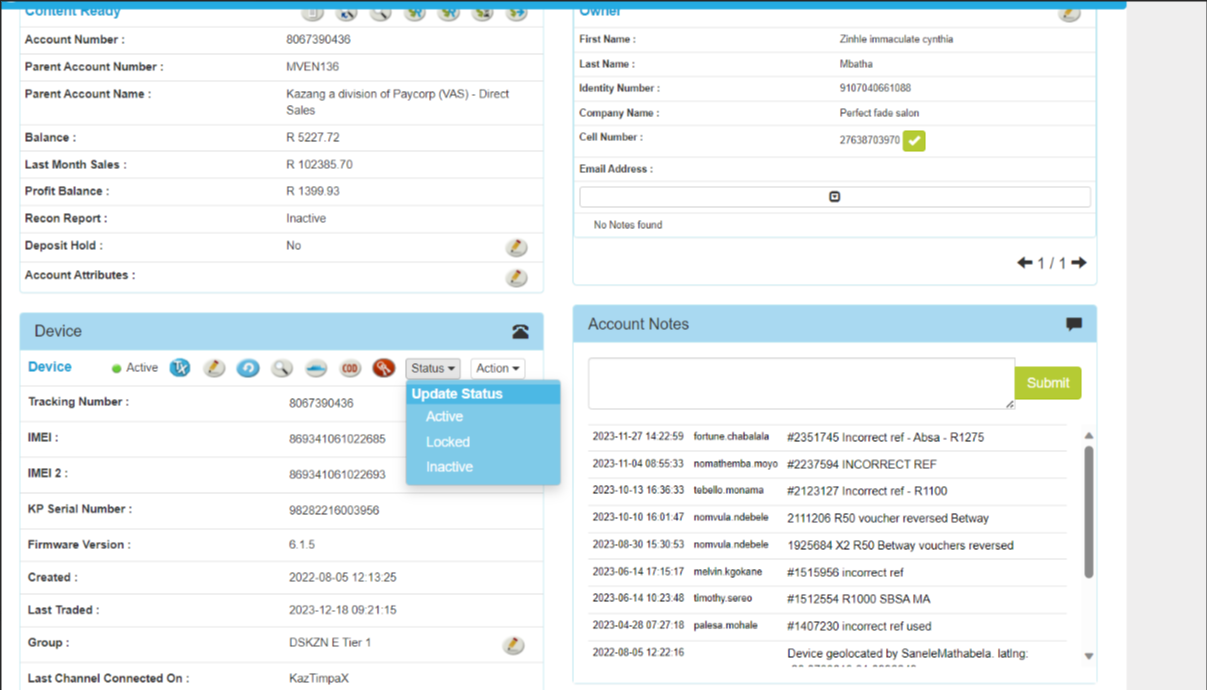
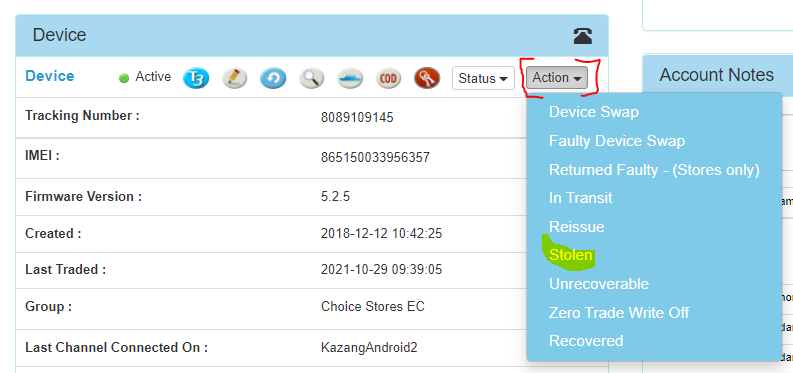
Step 4 - Once all the relevant police documentation has been received and the Rep/Agent is ready to place a replacement device in the vendors store or simply deactivate the account, you must update the status of the device to Stolen using the Action Dropdown.
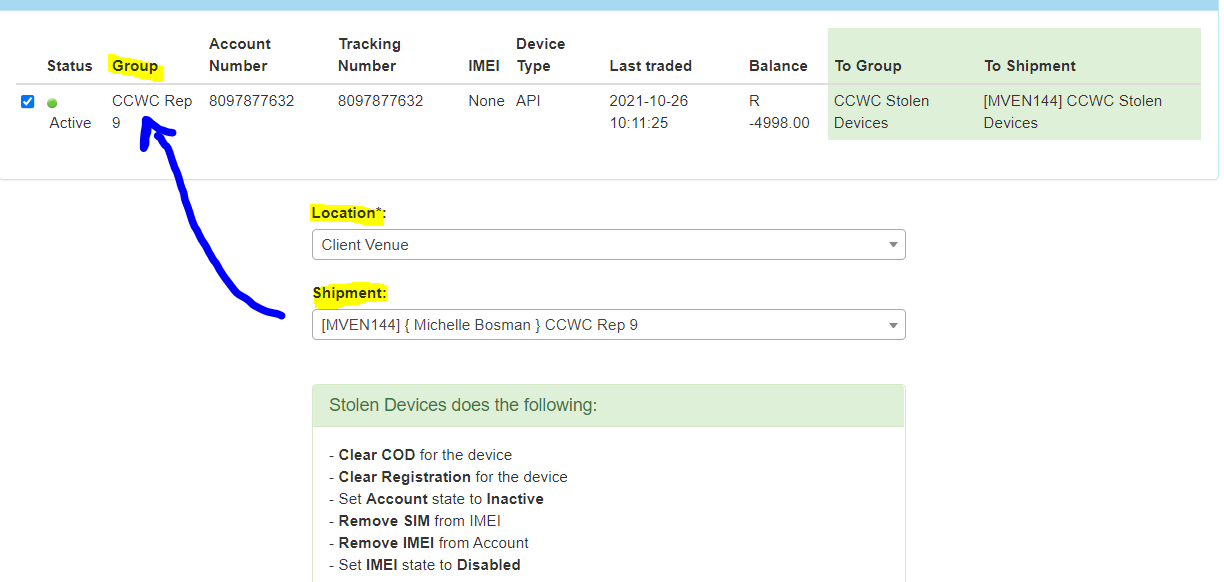
Once done, you will be redirected to the Stolen Devices screen where the kay actions are to be noted down:
1. Location
Needs to be set to Client Value and not Boot stock. If the location is set to Boot stock, this will reflect as the Field Rep/Agent has this device in the boot of their sales vehicle.
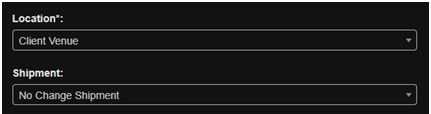
2. Shipment
No Change Shipment is selected from the dropdown. It is important not to change this option.
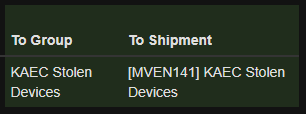
This will ensure that the device is placed under the "Stolen" group on Content Ready. Once all the filters have been checked, proceed to complete the process by clicking on Stolen Devices
Please note device replacements are only for the rental devices and corporate clients. Clients who bought and super dealers e.g. Gogo phones do not get any replacements from us.
Below are the Parent account numbers we arrange replacements for:
MVEN 141
MVEN 136
MVEN 143
MVEN 144

Was this article helpful?
That’s Great!
Thank you for your feedback
Sorry! We couldn't be helpful
Thank you for your feedback
Feedback sent
We appreciate your effort and will try to fix the article